
Open-source accounting software gives you free, full-featured tools to manage invoices, expenses, and financial reports without monthly subscription fees. Programs like GnuCash, Akaunting, and Invoice Ninja handle the same core tasks as QuickBooks or Xero, and you can download them right now without paying a cent.
The catch? You’ll need a bit more technical comfort to get started, and you won’t find a customer service phone number to call when something goes wrong. But for small business owners, freelancers, and anyone tired of watching accounting costs eat into profits, these tools offer genuine savings without forcing you to track everything in spreadsheets.
The real question isn’t whether open-source accounting software works (it does), but whether it fits your specific situation. If you’re comfortable installing software, reading documentation, and troubleshooting the occasional hiccup, you can save hundreds or even thousands of dollars per year. Some options run entirely on your computer for complete privacy, while others offer web-based interfaces that feel nearly identical to commercial platforms.
This guide walks you through the top open-source accounting tools available in 2026, shows you exactly what each one does well, and helps you decide which fits your business size, technical skill level, and feature requirements.
What Makes Accounting Software ‘Open-Source’?
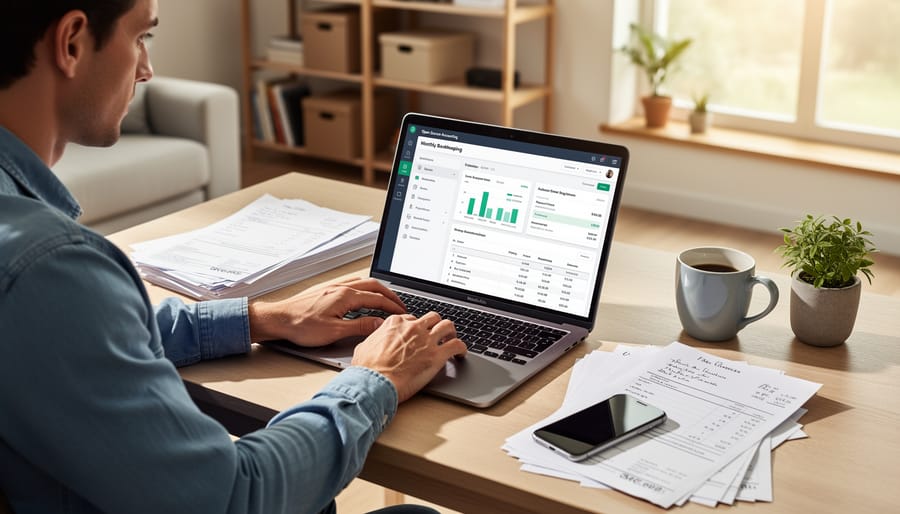
When software is “open-source,” it means the underlying code is freely available for anyone to use, inspect, and modify. Think of it like a recipe that’s shared publicly versus one kept secret in a restaurant’s kitchen. You don’t need permission to try it, adjust it to your taste, or share your improvements with others.
This contrasts sharply with proprietary software like QuickBooks or Xero, where the code is locked away. You pay for access, but you can’t see how it works under the hood or customize it beyond the features the company provides. You’re essentially renting the software on their terms.
For accounting specifically, this distinction carries real weight. Open-source tools are genuinely free, no monthly subscriptions that creep up over time, no surprise price hikes when your business grows. You own your setup completely.
There’s also transparency. With open code, security experts and developers worldwide can examine how the software handles your financial data. Problems get spotted and fixed by the community, not hidden behind corporate secrecy. If a feature doesn’t work the way you need, someone can build an extension or workaround.
You avoid vendor lock-in too. Your data isn’t trapped in a proprietary format that only one company’s software can read. If you outgrow a tool or find a better option, moving your financial records is straightforward.
The trade-off? You typically get community forums instead of phone support, and you might need a bit more tech comfort to get started.
Top Open-Source Accounting Solutions Worth Trying
GnuCash: The Desktop Workhorse
GnuCash has been around since 1998, making it the veteran of open-source accounting. It’s free desktop software that runs on Windows, Mac, and Linux, designed to handle everything from your household budget to a small business with multiple employees.
The big deal with GnuCash is double-entry accounting. That sounds intimidating, but it simply means every transaction gets recorded twice, once where the money came from, once where it went. This is the same method professional accountants use because it catches errors automatically. If your books don’t balance, you’ll know immediately.
GnuCash handles multiple currencies naturally, which is perfect if you do any international business or travel frequently. You can track stocks, bonds, and mutual funds too, making it popular with investors managing their portfolios.
The reports might feel old-school (think spreadsheet style rather than colorful charts), but they’re thorough. You can generate profit and loss statements, balance sheets, and tax reports that your accountant will actually understand. The interface takes some getting used to, but once you learn where things are, it’s rock-solid reliable.
Manager: Simple and Cloud-Ready
Manager stands out as the friendliest option if you’re intimidated by accounting software. It works on Windows, Mac, and Linux, and you can run it on your own computer or access it through a web browser, whichever feels more comfortable.
The interface looks clean and modern, more like everyday business software than a traditional accounting program. You’ll find invoicing, expense tracking, and basic inventory management all laid out in straightforward menus. There’s no accounting jargon blocking your path; Manager uses plain language labels that actually make sense.
What makes Manager particularly useful is its ability to handle multiple businesses from one installation. If you’re managing a side hustle alongside your main business, or juggling books for a few small clients, you don’t need separate software for each. Just switch between them with a click.
The learning curve is gentle. Most people can create their first invoice within minutes of opening Manager for the first time.
Akaunting: Built for Online Businesses
If you sell products online or run a freelance business, Akaunting speaks your language. This web-based platform was built with digital entrepreneurs in mind, offering a clean, modern interface that feels more like a SaaS product than traditional accounting software.
What sets Akaunting apart is its focus on online workflows. You can create and send professional invoices directly from your browser, track expenses on the go, and connect your bank accounts for automatic transaction imports. The real strength lies in its app marketplace, you’ll find extensions for PayPal, Stripe, WooCommerce, and dozens of other tools you’re probably already using.
Unlike desktop-only solutions, Akaunting runs entirely in your web browser, whether you self-host it or use their cloud service. This means you can check your cash flow from your phone during lunch or send an invoice from a coffee shop. The interface is genuinely intuitive, so you won’t need a degree in accounting to figure out where things are.
For freelancers juggling multiple clients or small shops managing inventory alongside sales, Akaunting hits the sweet spot between simplicity and capability.
Odoo: The All-in-One Powerhouse
Odoo isn’t just accounting software, it’s an entire business management system where accounting happens to be one module among dozens. Think of it like buying a Swiss Army knife when you only needed a blade, except everything in the toolkit actually works together seamlessly.
The accounting module handles standard bookkeeping tasks: invoices, expense tracking, bank reconciliation, and financial reports. But Odoo’s real strength shows when your business needs more. You can add CRM for customer management, inventory tracking for stock levels, a project management module for billable hours, or even e-commerce integration, all sharing the same database. When you create an invoice in sales, it automatically updates your accounting records. When inventory moves, costs adjust in real time.
This power comes with complexity. Odoo’s interface feels more like enterprise software than the stripped-down simplicity of Manager or Akaunting. You’ll face a genuine learning curve, especially if you enable multiple modules. Installation can be technical, most users opt for Odoo’s paid hosting rather than self-hosting, which somewhat defeats the pure open-source cost savings.
For growing businesses that need accounting plus other tools, Odoo eliminates the headache of connecting separate systems. For someone just tracking personal expenses, it’s massive overkill.
Key Features to Look For
When you’re choosing an open-source accounting tool, focus on the features that actually make your financial life easier, not the longest feature list.
Invoicing and billing should be straightforward, you need to create professional invoices, send them to clients, and track what’s been paid. This matters because chasing payments is already frustrating; clunky invoicing software makes it worse. Look for customizable templates, automatic payment reminders, and the ability to accept online payments if that suits your business.
Expense tracking keeps you from scrambling through shoebox receipts at tax time. Good software lets you categorize expenses as you go, office supplies, travel, equipment, and attach digital receipts. This saves hours when you need to prove deductions or understand where your money actually goes each month.
Bank reconciliation might sound technical, but it just means matching your software records to your actual bank statements. Software that imports bank transactions automatically (or at least makes manual entry painless) catches errors before they snowball. You’ll spot duplicate charges, missing deposits, or bookkeeping mistakes while they’re fresh.
Financial reports turn your data into decisions. At minimum, you want profit and loss statements (are you making money?) and balance sheets (what do you own and owe?). Clear, readable reports help you spot trends, plan for slow months, and show your financial health to lenders or partners.
Tax support varies widely. Some tools generate tax-ready reports for your accountant; others calculate sales tax automatically or produce forms directly. Know your country’s requirements and verify the software handles them, or plan to work with an accountant who can translate.
Multi-user access matters if anyone else touches your books, a bookkeeper, business partner, or accountant. Proper permissions mean your tax preparer can view reports without accidentally deleting transactions.
Getting Started: Installation and Setup Basics
Getting started with open-source accounting software is simpler than most people expect. You’ll first need to choose a setup approach: cloud-hosted or self-hosted. Cloud-hosted means someone else runs the software on their servers, and you access it through your web browser like Gmail. Self-hosted means you install it on your own computer or server. For beginners, cloud-hosted is usually the path of least resistance.
If you pick a cloud option like Akaunting or Manager’s online version, you create an account, verify your email, and you’re in. The interface walks you through basic setup: company name, currency, fiscal year start date. Take five minutes to fill these in accurately because they affect your reports later.
For desktop software like GnuCash, download the installer for your operating system, run it, and follow the prompts. It’s as straightforward as installing any program. On first launch, you’ll answer similar questions about your business details and accounting preferences. The software suggests defaults that work for most small businesses.
Once you’re in, start by setting up your chart of accounts. This sounds intimidating but it’s just categories for your money: income, expenses, assets, liabilities. Most programs include templates for common business types. Pick one close to yours and customize later if needed.
Next, connect your bank account for automatic transaction imports, or manually add your starting balance. Create your first invoice by clicking the invoicing tab, entering client details, adding line items with descriptions and amounts, then saving and sending. The software generates a professional PDF automatically.
Import existing data from spreadsheets using the import function, usually found under File or Settings. Map your spreadsheet columns to the program’s fields, preview the import, and confirm. If you’re moving from another accounting system, export your data there first, then import here.
The whole process takes 30 to 90 minutes for basic setup. While a self-hosting setup requires more technical steps, the actual accounting part stays this manageable regardless of hosting choice.
What You Gain (And What You Trade Off)
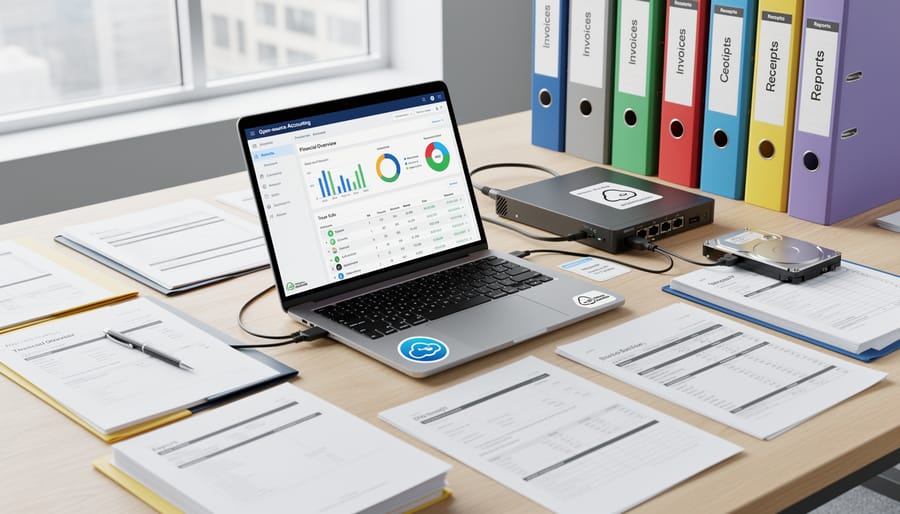
Open-source accounting software costs nothing upfront, which is its biggest draw. You never pay licensing fees, face surprise subscription hikes, or get locked into a vendor’s pricing model. Your financial data stays entirely under your control, stored where you choose, backed up how you prefer, with no risk of a company shutting down and taking your records with it. You can customize the software to match your exact workflow, add features you need, and skip forced upgrades that break your process.
The trade-offs center on support and convenience. When you hit a snag, you rely on community forums, documentation, and your own troubleshooting rather than calling a help desk. Most open-source options assume some baseline tech comfort, you should feel okay navigating settings, understanding file formats, and solving problems independently. The learning curve tends to be steeper than user-tested commercial software, especially for features like multi-currency transactions or advanced reporting.
This makes sense for a freelance designer tracking income and expenses who’s comfortable with technology and values keeping every dollar of profit. It’s smart for a small retail shop that wants full control over financial data and has time to learn the system. It becomes less practical for a growing medical practice that needs HIPAA-compliant workflows and can’t afford accounting downtime, or for someone managing multiple business entities across regions who needs to coordinate with remote device management and complex integrations. The money you save goes toward the time you invest learning and maintaining the system yourself.
Common Questions About Open-Source Accounting
If you’re considering open-source accounting software, you probably have questions. Let’s address the most common concerns straight-up.
Is it really completely free?
Yes, the software itself costs nothing to download and use. You might pay for cloud hosting if you choose that route, or for optional paid support, but the core software has no licensing fees or forced subscriptions.
Is my financial data secure?
Open-source software is transparent by design, meaning security experts worldwide can review the code for vulnerabilities. If you self-host, you control where your data lives. Cloud-hosted versions follow standard security practices, just like commercial alternatives.
Can I get help when I’m stuck?
Support comes primarily through community forums, documentation, and user groups rather than a phone helpline. Most popular options have active communities, and you can hire consultants for hands-on help if needed.
Will my accountant or tax preparer accept files from these programs?
Most open-source accounting software exports standard formats like CSV and PDF that accountants work with every day. Check with your specific accountant beforehand, but compatibility is rarely an issue for basic bookkeeping needs.
The switching question matters too. You’re not locked in. Export your data anytime and move to different software, whether that’s another open-source option or a paid service. Your financial records remain yours, in portable formats. That freedom is part of why open-source works well for small businesses testing what fits their workflow.
Open-source accounting software proves you don’t need a monthly subscription to manage your books professionally. The tools we’ve covered, GnuCash, Manager, Akaunting, and Odoo, offer real accounting capabilities that rival paid platforms, with the added benefits of complete data ownership and freedom from vendor lock-in.
Yes, there’s a learning curve. You’ll spend some time getting familiar with whichever platform you choose. But that investment pays off immediately in saved subscription fees and long-term in financial literacy. You’ll understand your numbers better when you’re actively working with them rather than just glancing at automated reports.
The best part? There’s zero risk in trying. Download GnuCash this weekend, or spin up a free Akaunting instance. If it doesn’t click, try another. Your data exports cleanly, and you haven’t spent a cent.
Taking control of your financial management doesn’t require expensive software or an accounting degree. It requires curiosity, a bit of patience, and the willingness to learn something new. Open-source accounting puts that control directly in your hands, free to use, free to modify, and free to keep forever.