
You can control your iPhone from anywhere using Apple’s built-in Find My app and iCloud features. Whether you’ve misplaced your phone between couch cushions or left it at a coffee shop, remote device management lets you locate, lock, or even erase your device without touching it. Setup takes about five minutes and works from any web browser or another Apple device.
The ability to manage your iPhone remotely isn’t just for emergencies. Parents use it to monitor their children’s device locations and set screen time limits. Small business owners track company phones issued to employees. And anyone can benefit from the peace of mind that comes with knowing they can instantly lock down their device if it falls into the wrong hands.
Apple makes this surprisingly straightforward. You don’t need special software or technical skills. The same iCloud account you already use for photos and backups powers the entire remote management system. Once configured, you can see your iPhone’s location on a map, make it play a sound at full volume even if it’s on silent, display a custom message on the lock screen, or wipe everything clean as a last resort.
This guide walks you through every step, from the initial setup to advanced features most iPhone users don’t know exist. You’ll learn exactly which settings to enable, how to test that everything works before you actually need it, and what to do if your phone goes missing.
What You’ll Need Before You Start
Before you start managing your iPhone remotely, you’ll need a few essentials. Gathering these items now will save you frustration later and ensure smooth setup.
- An iPhone running iOS 13 or later (older models may have limited functionality)
- A verified Apple ID with credentials you can easily access
- Wi-Fi or cellular data connection on your iPhone
- A secondary device for remote access: another iPhone, iPad, Mac, or web browser on any computer
- Two-factor authentication enabled on your Apple ID (Apple requires this for Find My)
Check your iPhone’s iOS version by opening Settings, tapping General, then About. If you’re running iOS 13 or newer, you’re good to go. Older versions might support Find My iPhone but lack newer security features, so consider updating if possible.
Your Apple ID serves as the master key for remote management. You’ll need both the email address and password, plus access to your trusted devices for two-factor authentication codes. If you’ve forgotten your credentials or don’t have two-factor authentication set up yet, address these issues first. Apple won’t let you enable Find My without them, and for good reason.
The secondary device requirement is straightforward: you need something besides your iPhone to send remote commands. This could be a family member’s phone, your work computer, or any device with internet access and a web browser to reach .
For most people, Apple’s built-in iCloud features provide everything needed for personal remote management. These consumer tools handle lost device scenarios, location tracking, and emergency data wiping. Enterprise users managing multiple company-owned devices need Mobile Device Management solutions instead. MDM platforms offer bulk device enrollment, app distribution, policy enforcement, and centralized control across dozens or thousands of iPhones. If you’re setting up remote management for just your personal phone or a few family devices, stick with iCloud. If you’re an IT administrator, you’ll want to explore MDM options after mastering the basics covered here.
Important Considerations and Warnings
Before setting up remote management for your iPhone, understand these critical security and privacy implications. Remote access to your device is powerful, which means protecting that access is essential.
Your Apple ID is the master key to everything. If someone gains access to your Apple ID credentials, they can locate your device, lock it, erase it, and access your iCloud data from anywhere in the world. Never share your Apple ID password, even with family members (use Family Sharing instead). Choose a strong, unique password, not one you’ve used elsewhere, and store it securely.
Two-factor authentication adds a second verification step when signing into your Apple ID from a new device. It’s not optional if you care about security. Without it, a stolen password is all someone needs.
If you lose access to your Apple ID, forgetting your password or losing your trusted devices for two-factor codes, you’ll face a lengthy account recovery process. During that time, you cannot use Find My or any remote management features, even if your phone is stolen. Apple’s security is designed to lock out everyone, including you, without proper credentials. Keep recovery contact information current and consider storing recovery codes in a secure location separate from your devices.
Understand what remote management cannot do. You can’t remotely access apps, read messages, view photos, or control your iPhone’s screen in real time using Apple’s consumer tools. Find My lets you locate, lock, and erase, but it’s not remote desktop access. You also can’t remotely restore data or undo a remote erase once it’s started.
Setting Up iCloud for Basic Remote Management
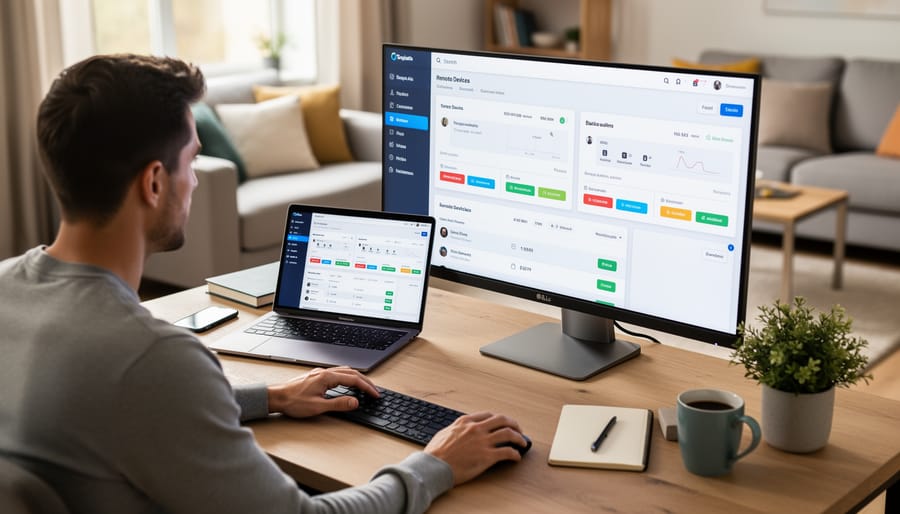
Enabling Find My iPhone
Open your iPhone and tap the Settings app, it’s the gray gear icon on your home screen. At the very top, tap your name to access your Apple ID settings. You’ll see a menu with several options; scroll down and select “Find My.”
In the Find My menu, you’ll see three main toggles. Tap “Find My iPhone” first and switch it on. This is the core feature that lets you see your device’s location from another device.
Below that, enable “Find My network.” This clever setting lets your iPhone be located even when it’s offline by using Bluetooth signals that nearby Apple devices can detect. It’s especially useful if your phone dies or someone turns off Wi-Fi.
The third toggle, “Send Last Location,” automatically sends your iPhone’s position to Apple when the battery critically low. This gives you one last chance to see where it was before it powered down.
All three toggles should be green when you’re done. Your iPhone will ask you to enter your Apple ID password to confirm these changes, that’s a security measure to prevent someone else from disabling these features without your permission.
Configuring Additional iCloud Features
After enabling Find My iPhone, you’ll want to turn on a few other iCloud features that work hand-in-hand with remote management. These services ensure you can recover your data and access important information even if something happens to your device.
iCloud Backup is essential. Go to Settings, tap your name at the top, then select iCloud > iCloud Backup. Toggle it on and tap “Back Up Now” to create your first backup. Your iPhone will automatically back up when it’s plugged in, locked, and connected to Wi-Fi. This means if you ever need to erase your device remotely, you won’t lose your photos, messages, or app data.
iCloud Keychain saves your passwords and payment information securely in the cloud. In the same iCloud settings menu, tap “Passwords & Keychain” (or just “Keychain” on older iOS versions) and enable it. This is crucial for remote management because if you lose your iPhone and get a new one, all your passwords sync automatically. You won’t be locked out of accounts when you’re already dealing with a lost device.
Consider enabling iCloud Photos as well. Tap “Photos” in the iCloud menu and turn on “Sync this iPhone.” Every photo you take uploads automatically, so they’re safe even if your phone isn’t.
These features work together to create a safety net. Your device’s location, data, and credentials stay accessible from any computer or secondary device, which is exactly what remote management is all about.
Using Find My to Manage Your iPhone Remotely
Locating Your iPhone
Once you’ve opened Find My on another device or logged into, tap or click on your iPhone in the Devices list. The map zooms to show your phone’s last known location with a green dot. If your iPhone is online, the location updates automatically within seconds. For a manual refresh, pull down on the screen (mobile app) or click the circular arrow icon (web browser).
The timestamp below your device name tells you when it last checked in, critical if your phone’s offline. A gray dot means the location is old; Find My will show “Location not available” until your iPhone reconnects to Wi-Fi or cellular.
Need to reach your phone? Tap the car icon (mobile) or click Directions (web) to open the location in Apple Maps. This generates turn-by-turn navigation from your current position to where your iPhone is. You can also share the location with someone else by tapping the share button.
Using Lost Mode
Lost Mode transforms your missing iPhone into a secure, locked device that displays your contact information to anyone who finds it. Activate this feature when you’ve lost your phone but haven’t given up hope of recovery, it’s the middle ground between simply locating your device and performing a full remote erase.
To enable Lost Mode, open Find My on another device, select your iPhone, and tap “Mark As Lost.” You’ll be prompted to enter a phone number where someone can reach you. Next, create a custom message that appears on your locked screen, something like “This phone is lost. Please call the number below to return it.” Keep it polite and direct.
Once activated, Lost Mode immediately locks your iPhone with your passcode and disables Apple Pay. The device displays your message prominently on the lock screen, making it impossible to miss. Your iPhone continues tracking its location and sends updates to Find My, even if the finder moves it around.
The phone remains functional enough for someone to call your contact number directly from the lock screen, but they cannot access any of your apps, data, or personal information.
Remote Erase as a Last Resort
Remote erase is your nuclear option, use it only when you’re certain the iPhone is gone for good and contains sensitive information you can’t risk falling into the wrong hands. Think stolen phone in a high-crime area, lost device with work data, or situations where Lost Mode hasn’t worked after several days.
Here’s what happens when you erase remotely: everything disappears. Photos, messages, apps, settings, all wiped. The phone becomes a blank slate, just like it left the factory. You’ll also lose the ability to track it through Find My, so this truly is a last resort after you’ve exhausted other options.
To erase your iPhone, open Find My on another device or visit . Select your iPhone from the devices list, then tap “Erase This Device.” You’ll need to confirm with your Apple ID password. The erase happens the next time your iPhone connects to the internet, so it’s not instant if the device is offline.
Before you hit that button, make absolutely sure you’ve got a recent iCloud backup. Once erased, there’s no undo button.
Enterprise Remote Management: MDM Solutions
While iCloud and Find My work perfectly for individual users, businesses and schools need more control over their iPhone fleets. Mobile Device Management (MDM) solutions fill this gap by giving IT administrators centralized control over dozens, hundreds, or thousands of devices simultaneously.
MDM turns iPhone management into an enterprise-grade system. Unlike consumer tools that require each user to manage their own device, a remote management app with MDM capabilities lets administrators configure policies, deploy software, and enforce security standards across an entire organization from a single dashboard.
Here’s what MDM solutions can do that Find My cannot:
- Push apps and updates to devices automatically without user intervention
- Enforce passcode requirements, encryption settings, and screen timeout policies
- Restrict features like camera access, app installation, or specific websites
- Configure Wi-Fi networks, VPN connections, and email accounts remotely
- Wipe corporate data while leaving personal information untouched
- Generate compliance reports showing which devices meet security standards
Popular MDM platforms include Apple Business Manager (which integrates directly with Apple’s ecosystem), Microsoft Intune, Jamf Pro, and VMware Workspace ONE. These systems work by installing a management profile on each iPhone, giving the administrator permission to control specific settings and features.
The connection to broader device management becomes clear when you consider how MDM mirrors enterprise IoT platforms. Just as UpdateHub manages remote firmware updates and configuration for embedded devices, MDM solutions handle software deployment and policy enforcement for mobile devices. Both solve the same fundamental challenge: how do you maintain control, security, and consistency across devices you can’t physically access? Whether you’re managing iPhones in employee pockets or sensors in remote locations, the principles remain consistent.
Understanding UpdateHub and Cross-Platform Remote Management
Remote device management isn’t just about finding your lost iPhone. It’s a technology category that spans everything from smartphones to industrial equipment, and understanding this bigger picture helps you appreciate what’s happening when you control your device from afar.
UpdateHub is a remote management platform designed for embedded systems and IoT (Internet of Things) devices. Think of factory sensors, medical equipment, or smart home hubs that need software updates and configuration changes without someone physically touching them. While you’ll never use UpdateHub to manage remotely your personal iPhone, the principles behind it mirror what Apple built into Find My and what companies use for their iPhone fleets.
The parallel is straightforward: whether you’re managing 50 iPhones at a small business or 500 IoT devices in a warehouse, you face the same core challenges. You need to know where devices are, push updates without visiting each one, lock down security remotely, and troubleshoot problems from your desk instead of driving across town. The technical implementations differ, but the goals align perfectly.
When a company deploys UpdateHub for their embedded devices, they’re solving the same headache you solve when you set up Find My: “How do I control this device when I can’t physically reach it?” Enterprise iPhone management through MDM solutions sits right in the middle of this spectrum. It’s more sophisticated than consumer tools but less specialized than industrial IoT platforms.
Understanding this context makes you a smarter iPhone user. You realize that remote wipe isn’t just a clever Apple feature but a standard capability across professional device management. Your personal setup mirrors what IT departments implement company-wide, just scaled down to one person and one phone.
Testing Your Remote Management Setup
Don’t wait for an emergency to discover your remote management isn’t working. Set aside ten minutes now to test every feature you’ve configured, it’ll save you panic and hassle if you ever need it for real.
Start by opening Find My on another device or computer and confirming your iPhone appears on the map with a current location. If the location looks stale or the device doesn’t show up, check that Find My is still enabled in Settings and that your iPhone has an active internet connection. Next, tap your device and use “Play Sound” to make sure the command goes through, you should hear the alert within a few seconds even if your phone is on silent.
Now simulate Lost Mode without actually losing your phone. From the secondary device, activate Lost Mode, set a custom message like “Test, please ignore,” and watch what happens on your iPhone. The screen should lock and display your message immediately. Turn off Lost Mode after verifying it works. This test confirms the command pipeline is functioning, similar to how administrators verify Kubernetes management across device clusters or test update systems when they build device systems from scratch.
Finally, check your iCloud backup date in Settings > [Your Name] > iCloud > iCloud Backup. If it’s more than a day old, tap “Back Up Now” and let it complete.
Run through this quick checklist every few months:
- Device appears in Find My with accurate location
- Play Sound works and audible alert sounds on iPhone
- Lost Mode activates and displays custom message correctly
- iCloud backup completed within the last 24 hours
- Two-factor authentication is enabled and working
- You can sign into from a computer successfully
If any item fails, revisit the setup steps before moving on. A working remote management system is only useful if you’ve confirmed it actually works.
Common Problems and How to Fix Them
Even with everything set up correctly, you might run into issues when trying to manage your iPhone remotely. Here are the most common problems and their fixes.
If your iPhone isn’t showing up in Find My, first check that Find My iPhone is actually turned on. Go to Settings, tap your name at the top, select Find My, then Find My iPhone, and make sure the toggle is green. Also verify your device has an active internet connection, Find My needs either Wi-Fi or cellular data to communicate its location. If you recently changed your Apple ID password, sign out and back in on your iPhone to refresh the connection.
Location not updating is usually a connectivity issue. Your iPhone needs to be powered on and connected to the internet to send location updates. If the device is off or in airplane mode, you’ll see the last known location with a timestamp. Try refreshing the map by pulling down on the screen in the Find My app. For devices with low battery, enable “Send Last Location” in Find My settings so your iPhone automatically sends its position before the battery dies.
When remote commands don’t work, like playing a sound or activating Lost Mode, the issue is almost always that the device isn’t receiving the command. Make sure your iPhone is connected to a network. Commands will execute as soon as the device comes online, so if someone turns it on later, the command you sent hours ago will still work.
What if I forgot my Apple ID password?
Visit on any device to reset your password using your email address or phone number. You’ll need access to a trusted device or phone number to verify your identity.
Why aren’t my two-factor authentication codes arriving?
Check that your trusted phone number is correct in your Apple ID settings. If you can’t receive codes, use a trusted device that’s already signed in to generate them, or contact Apple Support for account recovery.
Can I use Find My if my iPhone is turned off?
On iPhone 11 and newer, Find My can show the location for up to 24 hours after power-off using Bluetooth signals, similar to AirTags. Older models only show the last known location before shutdown.
For two-factor authentication problems specifically, make sure you have at least one trusted device that’s already signed into your Apple ID. This gives you a backup way to generate codes if your primary method fails. You can also generate codes from Settings on any signed-in device by going to your Apple ID settings and tapping Password & Security.
If nothing works and you’re locked out of your account, Apple’s account recovery process can take several days. This is why testing your remote management setup before an emergency matters, you’ll catch these issues when you have time to fix them, not when your phone is actually missing.
Setting up remote management for your iPhone isn’t just a nice-to-have feature, it’s essential protection for your device, data, and peace of mind. The good news? You’ve now got everything you need to take control, whether you’re protecting a single personal device or managing multiple iPhones in a business environment.
Don’t wait until you’ve lost your phone to set this up. Take 15 minutes today to enable Find My iPhone, verify your iCloud settings, and test your remote access from another device. Store your Apple ID credentials somewhere secure (not on your iPhone), enable two-factor authentication, and make a note to test your setup every few months.
The technology behind remote device management continues to evolve rapidly. While we’ve focused on iPhones here, solutions like UpdateHub demonstrate where this field is heading, seamless remote control and updates across entire device fleets, whether they’re smartphones, industrial sensors, or embedded systems. As our lives become more connected, the ability to manage devices remotely becomes increasingly valuable.
Your iPhone likely contains years of photos, messages, financial information, and personal data. Protecting that with proper remote management isn’t paranoia, it’s common sense.