
Building your own computer from individual components takes about 2 to 4 hours for a first-time builder and requires no special technical background. You’ll snap together a processor, motherboard, RAM, storage drive, power supply, and graphics card inside a case, then connect a few cables and power it on. The process is surprisingly straightforward because modern components are designed to fit together in only one correct way, making it nearly impossible to install something backwards or in the wrong slot.
The appeal goes beyond saving money compared to pre-built systems. When you assemble your own computer, you choose exactly the performance level you need for gaming, video editing, programming, or everyday tasks. You’re not paying for bundled software you won’t use or accepting compromises a manufacturer made to hit a price point. You’ll also gain a deeper understanding of how computers work, which connects directly to computer science fundamentals and makes future upgrades or repairs much less intimidating.
This guide walks you through every step of the assembly process, starting with the complete list of parts and tools you’ll need. We’ll cover essential safety practices to protect your components from static electricity, then move through the build sequence in the order that makes installation easiest. Each step includes the reasoning behind it, so you’ll understand not just what to do but why you’re doing it. By the end, you’ll have a fully functional custom computer and the confidence to troubleshoot any issues that might arise during your first power-on.
What You’ll Need: Tools and Components
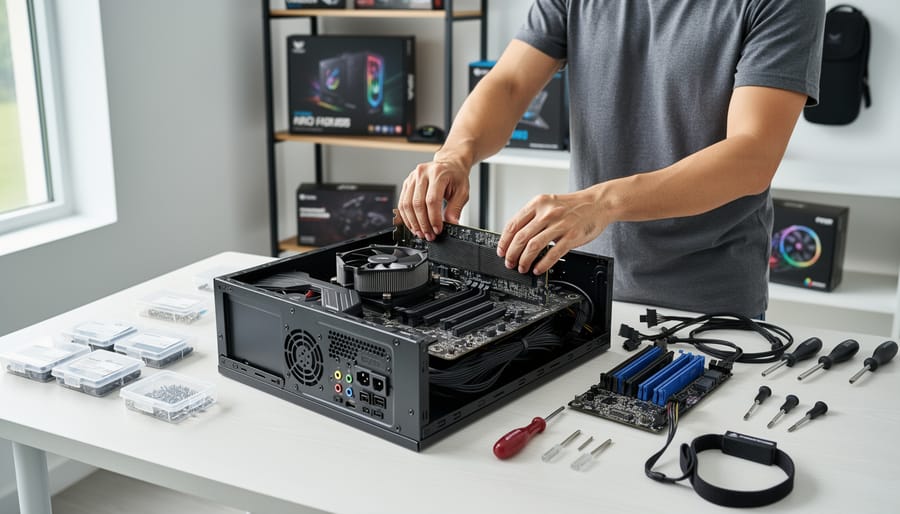
Before you start building, you’ll need to gather all the necessary parts and a few simple tools. Don’t worry if some of these terms are unfamiliar, we’ll explain everything in plain English.
Essential Components
Every computer needs these core hardware pieces to function:
- CPU (Central Processing Unit): The brain of your computer that handles all calculations and instructions
- Motherboard: The main circuit board that connects all your components together
- RAM (Memory): Temporary storage that helps your computer run programs quickly
- Storage Drive: Where you permanently save your operating system, programs, and files (SSD or hard drive)
- Power Supply (PSU): Converts electricity from your wall outlet into power your components can use
- Computer Case: The metal or plastic shell that houses and protects everything
- CPU Cooler: Keeps your processor from overheating (sometimes included with the CPU)
- Graphics Card (GPU): Handles video and graphics (optional if your CPU has integrated graphics)
Think of these components like puzzle pieces that fit together in specific ways. The motherboard acts as the foundation, and everything else plugs into it or mounts nearby.
Tools You’ll Need
You don’t need a fancy toolkit, just a few basic items:
- Phillips head screwdriver: The most important tool for securing components (a magnetic tip helps prevent dropped screws)
- Anti-static wrist strap: Protects sensitive electronics from static electricity damage
- Cable ties or velcro straps: Keeps cables organized and improves airflow
- Flashlight or headlamp: Helps you see into dark corners of the case
- Small container: Holds screws so they don’t roll away
Most components come with the specific screws and mounting hardware you’ll need, so you won’t have to buy extras. The anti-static wrist strap is cheap insurance, it clips to your wrist and grounds you to prevent accidental static shocks that could damage delicate circuits.
You should also have the instruction manuals that come with your motherboard and case handy. The motherboard manual especially will be your best friend during assembly, showing you exactly where each cable and component connects. Many manufacturers also include helpful diagrams that make the process straightforward even for first-timers.
With everything gathered in one place, you’re ready to move on to the safety preparation that will protect both you and your new components.
Before You Start: Safety and Preparation
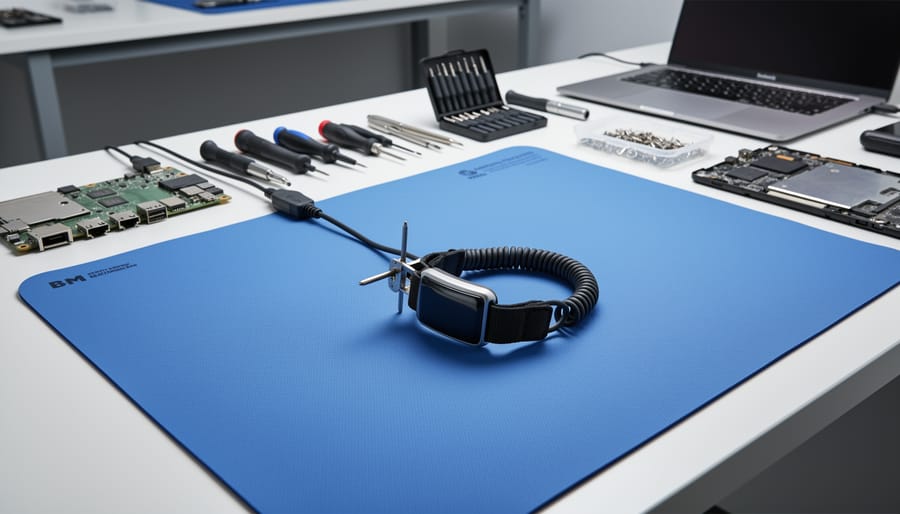
Before you touch a single component, taking a few safety precautions will protect your expensive hardware and make the build process smoother. These steps might seem basic, but they prevent the most common assembly mistakes.
Start by finding a clean, flat surface with plenty of room to spread out your components and tools. A large desk or table works perfectly. Avoid working on carpet if possible, it generates static electricity that can damage sensitive electronics. If you must work on carpet, take extra grounding precautions.
Keep all components in their anti-static bags until you’re ready to install them. These bags are designed to protect against static discharge, so don’t toss them aside too quickly. Power off your PSU and unplug it from the wall whenever you’re working inside the case, even during breaks.
Handle components by their edges rather than touching circuits, pins, or contacts directly. The oils from your fingers won’t help, and you might bend something fragile. Motherboards are especially delicate, those tiny pins and connectors break more easily than you’d think.
Before you start assembling, organize everything. Lay out your components so you can see what you have. Keep the small screws and standoffs in a container where they won’t roll away. This is also the perfect time to open up your motherboard manual and skim through it. Seriously, read the manual. It shows you exactly where RAM slots are, which header is for your CPU fan, and how to connect those tiny front panel cables. Every motherboard is slightly different, and the manual is your map.
Consider watching a build video or two that features your specific motherboard model. Seeing someone connect cables and install parts on your exact hardware removes a lot of guesswork. You’ll feel more confident when you recognize the layout.
Step-by-Step Assembly Process
Step 1: Prepare Your Workspace and Case
Clear a large, flat surface like a dining table or desk where you can spread out your components and work comfortably. Good lighting matters, you’ll be reading tiny labels on the motherboard and connecting small cables, so position a lamp overhead if needed. Remove any carpets or rugs beneath you to minimize static buildup.
Open your case by unscrewing or sliding off both side panels. Most modern cases have thumb screws or simple latches that don’t require tools. Set the panels aside carefully and keep all screws in a small container or magnetic tray, you’ll need them later, and they’re easy to lose.
Take a moment to familiarize yourself with the case interior. You’ll see a large rectangular area where the motherboard mounts (look for the pre-installed standoffs, small brass cylinders that keep the board elevated). The bottom or top usually houses the power supply compartment. Drive bays for storage sit along the front or behind the motherboard tray. Some cases include a basement shroud that hides cables for cleaner aesthetics.
Lay your motherboard manual, component boxes, and tools within arm’s reach. This organized setup prevents you from hunting for parts mid-assembly.
Step 2: Install the Power Supply
The power supply unit (PSU) typically installs first because it’s bulky and easier to position before other components fill the case. Most modern cases have a dedicated PSU compartment at the bottom, with the fan facing downward to pull cool air through ventilation holes.
Locate the PSU mount area in your case, usually at the bottom rear. Slide the PSU into position with the fan facing down (or toward the vent opening). The power connector and switch should face the back of the case where you can access them. If your case has a solid bottom without vents, flip the PSU so the fan faces up into the case interior instead.
Once positioned, align the four mounting holes on the PSU with those in the case. Secure it using the four screws that came with your case or PSU. Tighten them evenly but don’t overtighten.
Now’s the perfect time to route your main power cables (the thick bundles coming from the PSU) toward where they’ll connect later. Thread them through any cable management holes or channels in your case. This keeps your workspace tidy and makes the next steps much easier.
Step 3: Install the CPU on the Motherboard
Installing the CPU is one of the most nerve-wracking steps for first-time builders, but it’s actually straightforward once you understand the process. The golden rule here: if you’re forcing anything, you’re doing it wrong.
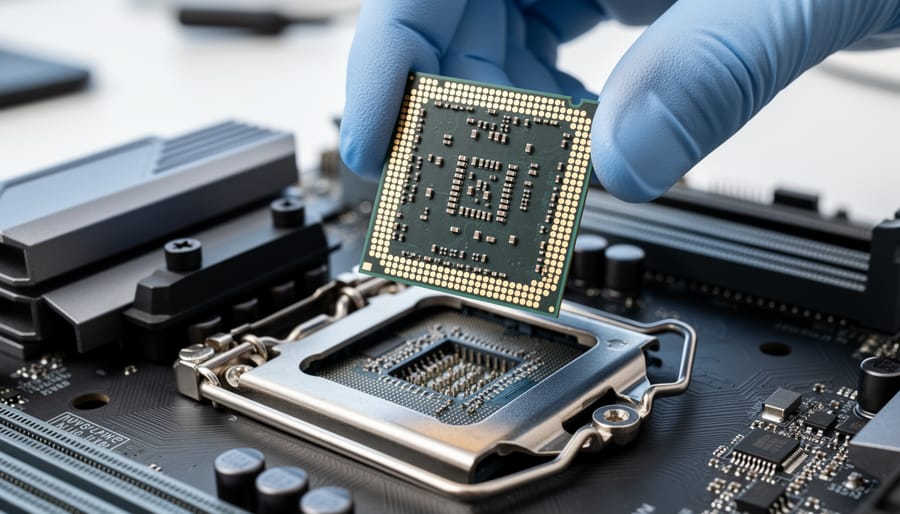
Start by locating the CPU socket on your motherboard, it’s usually a large square covered by a metal retention arm or lever. Gently push the lever down and to the side to release it, then lift it all the way up. Some motherboards have a protective plastic cover over the socket; if yours does, leave it in place for now (it’ll pop off automatically when you close the lever).
Take your CPU out of its box, holding it carefully by the edges. Never touch the gold pins on the bottom or the contact points on top. Look for a small golden triangle or arrow on one corner of the CPU, this is your alignment marker. The socket will have a matching triangle or notch in one corner.
Line up the triangles so they match, then gently lower the CPU straight down into the socket. It should sit completely flat without any pressure. If it doesn’t drop in easily, lift it out and check your alignment again. Once seated, lower the retention arm back down and secure it in place. You might feel slight resistance at the very end, that’s normal, but you shouldn’t be struggling to close it.
The CPU is now installed and you’re ready for the cooler.
Step 4: Attach the CPU Cooler
The CPU cooler keeps your processor from overheating during operation. Most coolers come with thermal paste pre-applied, but if yours doesn’t, you’ll need to apply a small amount yourself, about the size of a grain of rice in the center of the CPU. The pressure from mounting spreads it evenly, so don’t overdo it.
Stock coolers (included with your CPU) typically have a simple push-pin mechanism. Align the four corners over the mounting holes around the CPU socket and press each pin firmly until you hear a click. Work in an X pattern to apply even pressure. Aftermarket coolers vary widely, tower coolers use brackets and backplates, while all-in-one liquid coolers mount with screws. Check your cooler’s manual for the exact steps, as each model differs.
Once secured, locate the CPU fan header on your motherboard (labeled CPU_FAN, usually near the CPU socket) and connect the cooler’s cable. This four-pin connector only fits one way. The motherboard needs this connection to monitor temperatures and control fan speed, so don’t skip it.
Step 5: Install RAM Modules
Installing RAM is one of the easiest steps in building a computer, but it’s important to get it right for optimal performance. First, check your motherboard manual to identify which slots to use. For two RAM sticks, you’ll typically want slots 2 and 4 (counting from the CPU) to enable dual-channel mode, which boosts memory performance. Some motherboards label these A2 and B2.
Before touching the RAM, gently push down the clips at both ends of your chosen slots. They should fold outward. Hold your RAM stick by the edges, never touching the gold contacts or chips. You’ll notice a notch in the bottom edge that only allows the stick to fit one way.
Line up the notch with the key in the RAM slot, position the stick vertically above the slot, and press down firmly and evenly on both ends. Don’t be afraid to use steady pressure. When the RAM seats properly, you’ll hear a satisfying click as the clips snap back up and lock the module in place. Both clips should be vertical and holding the RAM securely. If one end isn’t clicking, apply more pressure there until it does.
Step 6: Mount the Motherboard in the Case
Before you touch the motherboard, locate the rectangular I/O shield that came with it. This metal plate matches the ports on your motherboard’s back panel. Pop it into the case’s rear opening from the inside, pressing firmly until all four sides click into place. The springy tabs should face inward.
Now you’ll see small brass posts called standoffs already installed in your case, these keep the motherboard elevated so its underside doesn’t touch metal and short-circuit. If your case requires manual standoff installation, screw them into the holes that align with your motherboard’s mounting points.
Carefully lower the motherboard into the case, angling it so the rear ports slide through the I/O shield opening. Align each mounting hole with a standoff beneath it. This takes patience, wiggle gently until everything lines up.
Insert screws through the motherboard holes into the standoffs, but don’t fully tighten yet. Once all screws are started, tighten them in a cross pattern, top left, bottom right, top right, bottom left. This distributes pressure evenly. Snug is enough; overtightening can crack the board.
Step 7: Install Storage Drives
Installing storage drives is where your computer gets its memory for files, programs, and your operating system. Modern builds typically use two types of drives: M.2 SSDs that attach directly to your motherboard, and traditional 2.5-inch or 3.5-inch drives that mount in the case.
For M.2 SSDs: Find the M.2 slot on your motherboard (check your manual for the exact location). Remove the tiny screw securing the standoff, slide your M.2 drive into the slot at about a 30-degree angle, then gently press it down flat. Replace the screw to hold it in place. That’s it, M.2 drives need no cables because they connect directly to the motherboard.
For SATA drives (2.5-inch SSDs or 3.5-inch hard drives): Slide the drive into an appropriate bay in your case and secure it with screws on both sides. Connect one end of a SATA data cable to the drive and the other to a SATA port on your motherboard. Then attach a SATA power cable from your power supply to the drive.
Most beginners start with one M.2 SSD for the operating system, which keeps things simple and cable-free.
Step 8: Install the Graphics Card (if applicable)
Installing a graphics card is straightforward, though not every build requires one. If your CPU has integrated graphics (like many Intel and AMD processors), you can skip this step and use the motherboard’s video outputs instead.
If you’re adding a dedicated GPU, start by locating the top PCIe x16 slot on your motherboard, it’s usually the longest slot closest to the CPU. Remove the metal expansion slot covers from the back of your case that line up with this slot. These covers are held by screws or clips, so unscrew them and set them aside.
Before inserting the card, check if your PCIe slot has a small retention clip at the end. If it does, make sure it’s in the open position. Carefully align your graphics card with the slot, matching the metal bracket to the case opening. Apply firm, even pressure straight down until the card clicks into place and the retention clip locks.
Secure the GPU’s metal bracket to the case using the screws you removed earlier. Finally, if your graphics card has power connectors (six-pin or eight-pin sockets on the edge), connect the appropriate cables from your power supply. Don’t force these, they only fit one way.
Connecting All the Cables
Connecting all the cables feels overwhelming at first, but there’s a logical order that makes it straightforward. Start with the largest connections and work your way down to the smallest.
Your motherboard needs two main power cables from the PSU. The 24-pin connector is the biggest one, it only fits one way, so line up the clip and push firmly until you hear it click. You’ll find this socket along the right edge of the motherboard. Next, locate the CPU power connector near the top left corner, usually labeled EPS or CPU_PWR. This 4-pin or 8-pin cable delivers power directly to your processor. Push it in until the clip catches.
If you installed storage drives, connect their cables now. SATA drives need two cables: a skinny L-shaped SATA data cable running from the drive to a SATA port on the motherboard, and a wider SATA power cable from the PSU. M.2 drives don’t need any cables, they’re already getting power and data through the motherboard slot.
Now comes the fiddly part: front panel connectors. These tiny plugs control your case’s power button, reset button, and LED lights. Open your motherboard manual to the front panel header diagram, seriously, don’t skip this step. The manual shows exactly which pins need which connectors. The plugs are labeled (PWR_SW, RESET_SW, HDD_LED, PWR_LED), but the pins are tiny and the labels on the motherboard are hard to read. Take your time here. These connectors aren’t polarized except for the LEDs, so if an LED doesn’t light up later, just flip its connector.
Connect any USB headers from your case’s front ports to the USB headers on the motherboard. USB 3.0 headers are blue and only fit one way. USB 2.0 headers have individual pins, match the missing pin on the connector to the missing pin on the header.
Here’s your essential connection checklist:
- 24-pin motherboard power (right edge)
- 4-pin or 8-pin CPU power (top left corner)
- SATA power and data cables for drives
- Front panel connectors (power, reset, LEDs)
- USB headers for front ports
- Graphics card power cables (6-pin or 8-pin, if your GPU needs them)
If your graphics card has power connectors on its end, plug in the required PCIe power cables from the PSU. Most mid-range and high-end cards need one or two 6-pin or 8-pin connectors. Don’t forget these, your computer will boot, but the GPU won’t work.
Finally, connect the CPU cooler’s fan cable to the CPU_FAN header on the motherboard. This lets the motherboard monitor and control fan speed. Any additional case fans plug into CHA_FAN or SYS_FAN headers.
Route cables behind the motherboard tray if your case allows it, and use cable ties to keep things tidy. Good cable management improves airflow and makes future upgrades easier.
Testing and Troubleshooting Your Build
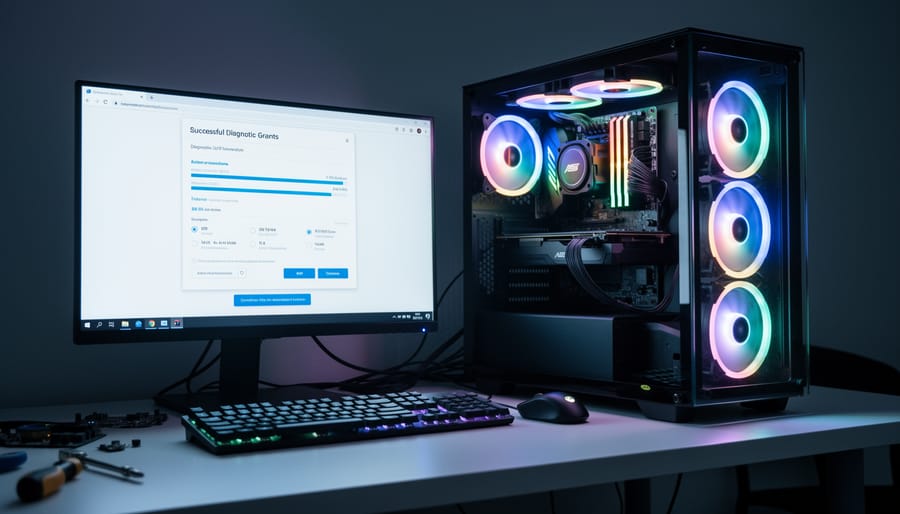
The moment of truth has arrived. Double-check that your monitor is connected to your graphics card (if you have one) or motherboard video port, plug in your keyboard and mouse, then connect the power cable to your PSU and the wall outlet. Flip the PSU power switch to the ‘on’ position, take a breath, and press the case power button.
If everything is connected properly, you’ll hear fans spin up and see lights come on. Within a few seconds, you should hear a single beep (on some systems) and see the POST screen appear on your monitor. POST stands for Power-On Self-Test, your motherboard checking that essential components are present and working. You might see the motherboard manufacturer’s logo or a basic screen listing detected hardware. This is exactly what you want. If you reach the BIOS setup screen or a message saying “No bootable device found,” congratulations, your computer works. That message simply means you haven’t installed an operating system yet, which is completely expected at this stage.
Don’t panic if things don’t work perfectly on the first try. Most builders encounter at least one hiccup during their first boot, and nearly all issues have straightforward fixes.
If your monitor stays black, first verify it’s on the correct input and the cable is secure. Then check that RAM sticks are fully inserted, you should have heard distinct clicks when the clips locked. If you installed a dedicated graphics card, make sure your monitor cable connects to the GPU, not the motherboard ports above it. Reseat the GPU if necessary, pushing firmly until the retention clip snaps.
If nothing happens when you press the power button, confirm the PSU switch is flipped on and check that both the 24-pin and 8-pin CPU power cables are firmly connected. It’s surprisingly easy to miss one of these during assembly. Also verify the front panel power switch cable is connected to the correct motherboard pins.
Hearing multiple beeps or a pattern of beeps? Your motherboard is speaking to you through beep codes. Each pattern indicates a specific issue, like missing RAM or a CPU problem. Check your motherboard manual for the beep code chart and follow its guidance. Often it’s just a matter of reseating the component it’s complaining about.
If the computer powers on but shuts off after a few seconds, the CPU cooler may not be connected properly or the CPU power cable might be loose. Turn everything off and double-check those connections.
Next Steps: Installing Your Operating System
Once your computer successfully completes the POST and you see the BIOS screen, you’re ready to bring it to life with an operating system. This step transforms your assembled hardware into a functioning computer you can actually use.
First, you’ll need installation media. Download the operating system installer, Windows 10/11 from Microsoft’s website or your preferred Linux distribution, and create a bootable USB drive using a tool like Rufus or the official media creation tool. You’ll need a USB drive with at least 8GB of space and another working computer to create it.
With your bootable USB ready, plug it into your new build and restart. Press the boot menu key during startup (usually F12, F8, or Del, your motherboard manual will specify) to select the USB drive as the boot device. This launches the installation process where you’ll choose your language, accept the license, and select which drive to install to. The installer will format your drive and copy files, which typically takes 15-30 minutes.
After installation completes and you reach the desktop, immediately install drivers. Start with your motherboard chipset drivers from the manufacturer’s website, then GPU drivers from NVIDIA or AMD. Windows Update will handle many remaining drivers automatically. Unlike choosing a laptop where drivers come pre-installed, you’re responsible for ensuring everything works correctly.
With the OS and drivers installed, your build is fully operational and ready for software, games, and whatever tasks you built it for.
Common Questions About Building a PC
Building your first computer raises a lot of questions, and that’s completely natural. Here are the answers to the concerns most beginners have when starting their first build.
How long does building a PC actually take?
Your first build typically takes 2-4 hours, though it might stretch longer if you’re being extra careful or watching tutorials as you go. Once you’ve done it before, future builds usually take under an hour.
Can I actually break something during assembly?
Components are more durable than you think, but yes, rough handling can damage parts. The most fragile items are CPU pins and RAM slots, but as long as you’re gentle, don’t force anything, and follow the steps carefully, breakage is rare.
Is building really cheaper than buying prebuilt?
You’ll typically save 15-30% compared to equivalent prebuilt systems, and you get exactly the components you want. The savings are most noticeable in mid-range and high-end builds, while budget builds have smaller margins.
Do I need prior experience or technical knowledge?
Absolutely not. If you can follow instructions and use a screwdriver, you can build a computer. Millions of first-timers successfully build PCs every year with nothing more than YouTube tutorials and motherboard manuals.
Will upgrading be difficult later?
Upgrading is actually easier than the initial build because you already know where everything goes. Swapping RAM, adding storage, or upgrading your graphics card takes minutes once the system is already assembled.
What if it doesn’t turn on the first time?
This happens to many builders and usually comes down to a loose cable or RAM not fully seated. The troubleshooting section covers the most common issues, and nearly all first-boot problems have simple fixes that don’t require taking everything apart.
The fear of making mistakes holds many people back, but remember that every experienced builder was once a beginner staring at a pile of components. The PC building community is remarkably helpful, with forums and subreddits dedicated to answering questions and troubleshooting problems. If you run into issues, thousands of people who’ve faced the same challenge are ready to help.
Your biggest advantage as a first-time builder is patience. There’s no timer running, no deadline to meet. Take breaks when you need them, double-check connections before powering on, and don’t hesitate to consult your motherboard manual multiple times. The manual isn’t just a safety net; it’s your primary reference guide throughout the build.
You’ve just completed something many people find intimidating, but you did it. Building your own computer from scratch is a genuine achievement that gives you both a working machine and valuable knowledge that will serve you for years.
You started by gathering the right components and tools, took the time to understand safety precautions, worked through each assembly step methodically, and successfully powered on your new system. That’s no small feat. Each phase taught you something about how computers actually work, and now you can look inside any desktop and understand what you’re seeing.
The best part? This is just the beginning. You now have the confidence to troubleshoot issues, upgrade components when needed, and help friends with their builds. The computer you assembled today can grow with your needs. Want more storage next year? You know exactly how to install it. Ready for a better graphics card? You’ve already done the hard part.
As you continue your journey with computer assembly and customization, you’ll discover even more possibilities. From optimizing performance to exploring advanced configurations, even remote device management once you have multiple systems, the skills you’ve gained open doors to deeper technical understanding.
You built this. And that’s something worth celebrating.