
Choosing a laptop for R machine learning work comes down to three core specs: at least 16 GB of RAM (32 GB preferred), a modern multi-core processor, and fast SSD storage. Unlike deep learning workflows that demand powerful GPUs, R libraries like caret, randomForest, and tidymodels primarily tax your CPU and memory since most R operations run in-system RAM rather than on graphics cards.
If you’re planning to buy a laptop for R-based data science, you need to understand that R handles data differently than Python or other languages. R loads entire datasets into memory before processing them, which means insufficient RAM will crash your session halfway through training a model. A laptop with 8 GB might handle small datasets, but the moment you work with real-world data or run cross-validation on ensemble models, you’ll hit a wall.
The good news? You don’t need a gaming rig or a $3,000 workstation. Most R workflows perform well on mid-range business laptops that prioritize processor cores and memory over flashy graphics. A solid Intel Core i7 or AMD Ryzen 7 with 32 GB of RAM will handle randomForest, xgboost, and most statistical modeling tasks without breaking a sweat.
This guide walks you through exactly what specs matter for R machine learning, which laptop categories deliver the best value, and what mistakes first-time buyers make. We’ll cover budget-friendly options starting around $800, mid-range picks that balance performance and portability, and high-end configurations for intensive work. For broader context on hardware for data science tasks, check out our machine learning laptop guide.
What Makes R Machine Learning Different from Other ML Workflows
R operates fundamentally differently from Python when it comes to machine learning, and these differences directly impact what your laptop needs to handle. Understanding these quirks helps you avoid buying a machine that looks great on paper but struggles with real R workflows.
The biggest difference is how R loads and manipulates data. When you import a dataset in R, the entire thing gets loaded into your computer’s RAM as a data frame. Unlike Python’s ability to process data in chunks or use lazy evaluation, R keeps everything in memory simultaneously. This means a 2GB CSV file doesn’t just need 2GB of RAM, it often requires 3-4 times that amount once R starts creating copies during transformations and model training. If you’re working with customer data from a mid-sized business or training models on survey responses, you can easily blow past 8GB of RAM before you’ve even started the actual machine learning.
Most R operations run on a single processor core by default. When you train a random forest with 500 trees using the randomForest package, R processes each tree sequentially unless you explicitly set up parallel processing with packages like doParallel. This single-threaded behavior means a laptop with a high-speed CPU (measured in GHz) often outperforms one with more cores but slower speeds for basic R tasks. Python’s scikit-learn, by contrast, automatically uses multiple cores for many operations.
R’s package management also creates unique demands. A typical machine learning environment might include tidyverse, caret, tidymodels, randomForest, xgboost, and dozens of dependencies. These packages take up significant storage space and load faster from an SSD than a traditional hard drive. When you’re iterating on models and restarting R sessions frequently, the difference between a 5-second and 30-second package load time compounds quickly. Package installations also compile code in the background, which taxes your processor and benefits from faster storage speeds during the build process.
Essential Hardware Specs for Running R Machine Learning Libraries

Processor: Why Multi-Core Performance Matters
R’s machine learning libraries can split computational work across multiple CPU cores, but only if you set it up correctly. When you run a random forest with 1,000 trees using the randomForest package on a single core, it might take 20 minutes. Enable parallel processing with packages like doParallel or foreach, and that same task drops to 5 minutes on a quad-core processor. The catch is that R doesn’t automatically use all your cores, you need libraries that explicitly support parallel operations, and those libraries only speed up when you have enough cores to distribute the work.
For R machine learning in 2026, aim for at least 4 physical cores, though 6 to 8 cores offer better performance for larger datasets. Both Intel and AMD produce capable processors in this range. Intel’s 13th and 14th generation Core i5 and i7 chips deliver solid single-thread speed, which matters for R operations that can’t be parallelized. AMD’s Ryzen 5 and Ryzen 7 processors often provide more cores at similar price points, making them attractive for workflows where you’re training multiple models simultaneously.
Clock speed matters too. R’s base operations run on a single thread, so a processor with 3.0 GHz base speed will feel noticeably faster during data manipulation than a 2.0 GHz chip, even if both have the same core count. Real-world foreach parallel performance depends on your specific libraries and code structure, but more cores consistently help when you’re cross-validating models or running grid searches across parameter sets.
RAM: How Much Memory Do You Really Need?
RAM is the single most important spec for R machine learning because R loads entire datasets into memory. Unlike Python’s libraries that can stream data from disk, R’s data frames sit in RAM while you work with them. If you run out of memory, R crashes, and you lose your progress. That’s why getting enough RAM should be your top priority on any specs checklist for R work.
Here’s what you actually need for different workflows:
- Beginner learners working with small datasets (under 1GB): 8-16GB handles most tutorials and courses comfortably
- Data analysts running models on moderate datasets (1-5GB): 16-32GB prevents slowdowns when fitting complex models
- Professional data scientists with large projects (5GB+ datasets): 32GB or more allows multiple models and processes running simultaneously
A practical rule: your laptop needs at least four times the RAM of your typical dataset size. Training a random forest on a 4GB dataset might consume 12-16GB when R creates temporary objects during model fitting. Add your operating system overhead and other programs, and 16GB becomes the minimum for serious work.
The difference shows up in real tasks. Fitting a gradient boosting model with cross-validation on 16GB completes in minutes; on 8GB, the same job takes hours as your laptop swaps to disk constantly. If you’re choosing between a faster processor and more RAM, pick the RAM every time for R machine learning.
Storage: SSD vs HDD and Capacity Considerations
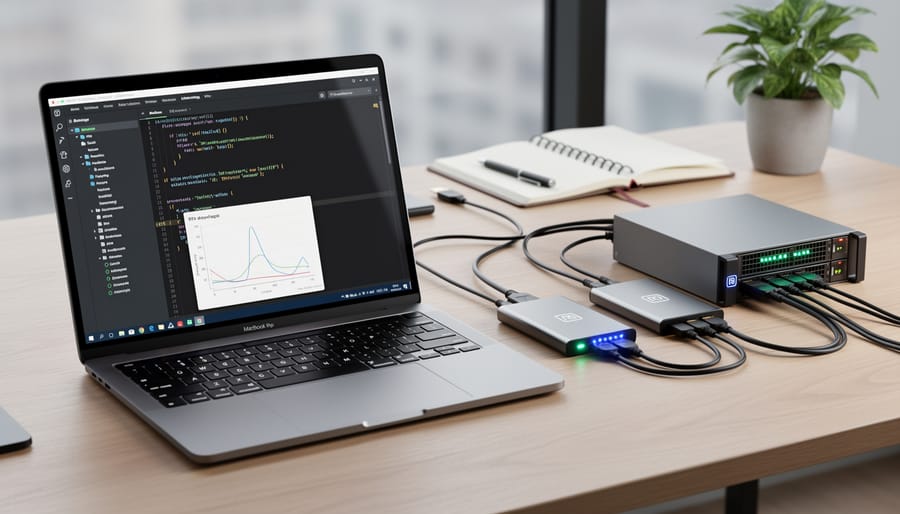
Storage speed makes a bigger difference in R workflows than many beginners expect. When you launch RStudio or load packages like tidymodels or caret, your laptop reads thousands of small files from disk. An SSD (solid-state drive) handles these operations 10-20 times faster than a traditional HDD (hard disk drive). What takes 30 seconds on an HDD, loading a package and reading a dataset, often completes in under 3 seconds with an SSD.
For capacity, start with 256GB as your bare minimum. The base R installation takes about 500MB, but popular machine learning packages easily add another 2-3GB. Your datasets, scripts, and project files pile up quickly. If you work with image data or large CSV files for training models, 512GB becomes the practical minimum. Working with genomics data or video? Consider 1TB.
The price gap between SSD and HDD has shrunk dramatically. A 512GB SSD costs roughly what a 1TB HDD did two years ago, and the productivity gain from instant file access pays back that small premium within weeks. Don’t sacrifice SSD speed to gain extra storage, the performance hit cripples your daily R work.
Graphics Card: When Does GPU Acceleration Help?
Most R machine learning libraries, including caret, randomForest, and tidymodels, run exclusively on your CPU and won’t touch a dedicated graphics card. Unlike Python’s deep learning frameworks, R packages rarely tap into GPU acceleration by default.
A GPU becomes useful only if you’re working with specific deep learning packages like keras or tensorflow for R, which can leverage NVIDIA GPUs through CUDA. Even then, you’ll need to manually configure GPU support, it’s not automatic. For standard statistical modeling, data wrangling, or traditional machine learning in R, a graphics card adds zero performance benefit.
If your R work focuses on regression, classification trees, or data manipulation, skip the GPU entirely and put that budget into more RAM or a faster processor instead.
Types of Laptops Compared for R Machine Learning
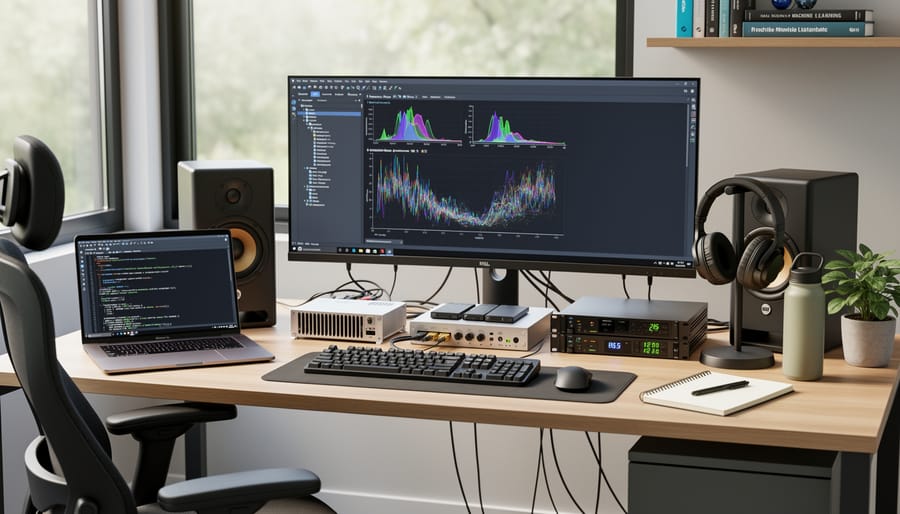
Choosing the right category of laptop for R machine learning depends on balancing your budget, performance needs, and portability requirements. Each laptop type brings distinct advantages and limitations that affect how smoothly you’ll run randomForest models, train tidymodels workflows, or handle large data frames. Understanding these trade-offs helps you invest wisely rather than overspending on features you won’t use or buying underpowered hardware that slows your work.
Budget ultrabooks appeal to students and beginners exploring R for the first time. These thin-and-light machines typically cost $400-$700 and prioritize portability over raw power. They work fine for learning basic R syntax, running small datasets through caret, and following tutorials with sample data. The catch? Most ship with 8GB RAM and dual-core processors that struggle when you load a 500,000-row CSV or fit complex ensemble models. Thermal throttling becomes an issue during sustained computation, the laptop heats up and slows down to protect itself. If you’re just starting your R journey with modest datasets, an ultrabook gets you going without breaking the bank. Just know you’ll hit performance walls faster than with more robust options.
Mid-range productivity laptops occupy the sweet spot for most R users. Priced between $700-$1,200, these machines balance capable hardware with reasonable portability. You’ll typically find quad-core processors, 16GB RAM, and 512GB SSDs, specs that handle real-world machine learning projects comfortably. These laptops run multicore parallel processing through doParallel without excessive heat, load large packages quickly, and give you room to grow your skills. They’re ideal for data analysts, graduate students working on thesis projects, or professionals who need reliable R performance for daily tasks. The main limitation is that truly massive datasets or computationally intensive deep learning still push these machines hard.
High-performance workstations deliver serious computing power for demanding R workflows. At $1,500-$3,000+, they pack six to eight-core CPUs, 32GB or more RAM, and enterprise-grade cooling systems. These beasts excel at training large random forests, running extensive hyperparameter tuning, and handling datasets that would choke lesser machines. Professional data scientists and researchers tackling complex modeling projects appreciate the speed advantage, what takes twenty minutes on a mid-range laptop might finish in five here. The trade-offs are weight (often 5+ pounds), battery life (expect 3-4 hours under load), and cost. You’re paying for sustained performance that most casual users simply don’t need.
Gaming laptops present an interesting option that many R users overlook. For similar money to high-performance workstations ($1,000-$2,000), you get powerful multi-core processors and excellent cooling designed for hours of intense use. That thermal management translates beautifully to long R modeling sessions. The discrete GPU rarely helps with traditional R libraries, but it’s there if you explore keras or tensorflow. Gaming laptops typically offer more RAM upgrade slots too. Downsides include flashy designs that look out of place in professional settings, heavier weight, and fans that can get loud under load. If you don’t mind the gamer aesthetic and want strong performance at competitive prices, they’re worth considering alongside traditional workstations.
| Laptop Type | Price Range | Best For | R Performance Level | Key Trade-offs |
|---|---|---|---|---|
| Budget Ultrabook | $400-$700 | Beginners, small datasets, learning R basics | Basic | Portability vs. limited RAM and thermal throttling |
| Mid-Range Productivity | $700-$1,200 | Most users, real-world projects, daily analysis | Capable | Balanced specs vs. not top-tier for heavy workloads |
| High-Performance Workstation | $1,500-$3,000+ | Professionals, large datasets, intensive modeling | Excellent | Raw power vs. weight, battery life, and cost |
| Gaming Laptop | $1,000-$2,000 | Users wanting performance and future GPU options | Strong | Good value and cooling vs. gamer aesthetic and noise |
The laptop types compared here serve different R users well depending on your specific situation. Match your choice to your actual workload rather than aspirational projects you might tackle someday. A mid-range laptop handles most R machine learning tasks beautifully, and you can always offload truly massive jobs to cloud computing if needed. Starting with appropriate hardware for your current needs leaves budget for RAM upgrades or storage expansion as your skills and projects grow.
Laptop Recommendations by Budget and Use Case
Matching your laptop to your R machine learning needs doesn’t require guessing, it’s about aligning specs with how you’ll actually work. Here’s what to prioritize at each budget level.
Entry-Level: For Students and R Beginners ($500, $800)
If you’re just starting with R or working through tutorials and small datasets, you need enough power to run RStudio comfortably without overspending. Look for a laptop with at least an Intel Core i5 or AMD Ryzen 5 processor from recent generations, 16GB of RAM, and a 256GB SSD minimum. The 16GB RAM threshold matters more than you might think, even beginner projects with tidymodels or caret can choke on 8GB when you load multiple libraries and a moderately sized dataset. For more options in this range, check out general budget laptop recommendations that apply across use cases.
Storage seems less critical at this stage, but a fast SSD makes the difference between waiting five seconds for RStudio to launch or thirty. If you’re choosing between 8GB RAM with 512GB SSD or 16GB with 256GB, pick the RAM every time, you can use external storage or cloud options, but you can’t fake more memory.
Mid-Range: For Working Professionals and Serious Learners ($800, $1,500)
This tier handles real-world R projects comfortably: building random forests on datasets with tens of thousands of rows, running cross-validation loops, testing multiple models in a session. Target an Intel Core i7 or AMD Ryzen 7 processor, 16GB RAM as your baseline (with an eye toward 32GB if possible), and at least a 512GB SSD.
The processor upgrade from entry-level pays off when you use parallel processing libraries like doParallel. A quad-core CPU in the entry tier might take 20 minutes to train a model; a modern six or eight-core chip here cuts that to under ten. You’ll also want better thermal management, look for laptops with dual-fan cooling systems, since R can push CPUs hard during long training runs.
High-End: For Data Scientists and Heavy Workloads ($1,500+)
Large datasets, deep learning with keras in R, or running simulations with thousands of iterations demand serious hardware. Prioritize 32GB RAM minimum (64GB if you regularly work with datasets over 10GB), a current-generation Intel Core i7/i9 or AMD Ryzen 7/9 processor with eight cores or more, and 1TB SSD storage.
At this level, consider whether you need discrete GPU support. Most traditional R libraries won’t use it, but if you’re running TensorFlow or PyTorch models through R interfaces, an NVIDIA RTX GPU accelerates training significantly. Workstation-class laptops with better cooling and build quality also matter, you’re likely running intensive tasks for hours, and consumer-grade thermals can throttle performance when the chassis gets hot.
Common Mistakes to Avoid When Buying a Laptop for R
Buying a laptop for R machine learning work comes with specific pitfalls that can seriously hamper your productivity. Many people focus on headline specs like processor brand while overlooking the details that actually determine whether R runs smoothly or crawls to a halt. Here are the most common errors that avoid buying mistakes when setting up your R machine learning environment:
- Skimping on RAM to stay under budget, then hitting memory errors with modest datasets
- Choosing an HDD over SSD to save money, resulting in agonizingly slow package loads and data reads
- Ignoring thermal performance and cooling design, leading to throttling during long model training sessions
- Buying a sleek ultrabook with soldered RAM and no upgrade path as your skills and projects grow
- Neglecting battery life if you plan to work on R projects away from power outlets
The RAM trap catches people most often. You might think 8GB sounds adequate because your current laptop runs fine, but R loads entire datasets into memory. When you hit that ceiling mid-analysis, you cannot simply close a browser tab to free up space. Your script fails, and you’re stuck. Investing in 16GB minimum saves you from constant workarounds and frustration.
The storage mistake is equally damaging. An HDD might offer more gigabytes per dollar, but every time you launch RStudio or load a package like caret with its dependencies, you’ll wait. Those seconds add up to minutes every single day. R reads and writes temporary files constantly during analysis, and an SSD makes that process nearly invisible instead of a productivity killer.
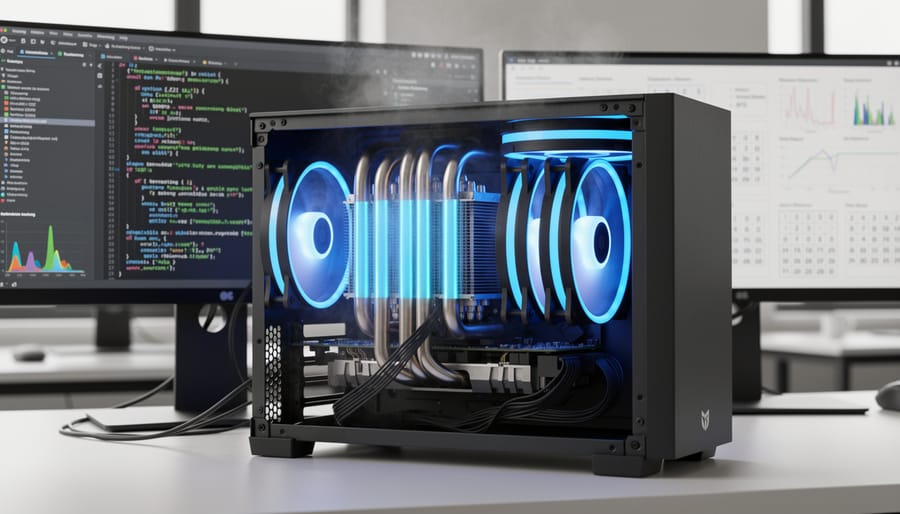
Thermal performance gets overlooked because spec sheets rarely highlight it. A laptop that looks powerful on paper but throttles its CPU after ten minutes of sustained computation will drag out every model training run. This matters especially for iterative work like hyperparameter tuning, where you’re running the same code repeatedly. Check reviews that mention thermal behavior under load, not just benchmark scores.
Frequently Asked Questions
Can I Run R Machine Learning on a Mac?
Absolutely. R and most machine learning libraries run smoothly on macOS, and many data scientists prefer Macs for the Unix-based command line and build quality. The main consideration is RAM, newer MacBooks with M2 or M3 chips start at 8GB unified memory, which can feel tight when loading large datasets. If you’re choosing a Mac, prioritize 16GB or more for comfortable R workflows. Some packages with specific dependencies may require slightly different installation steps on Mac compared to Windows, but these are typically well-documented.
Is Windows or Mac better for R machine learning?
Both work well, Windows offers more hardware variety and upgrade options, while Mac provides a smoother Unix environment and excellent build quality. Choose based on your existing ecosystem and budget, not R compatibility.
Will a Chromebook work for R machine learning?
Not practically. Chromebooks lack the local processing power and can’t run R natively. While you could use cloud-based RStudio, you’d face latency issues and depend entirely on internet connectivity.
Do I need a gaming laptop for R machine learning?
No. Gaming laptops offer powerful CPUs and plenty of RAM, which helps R, but you’re paying extra for GPU capabilities that most R libraries don’t use. A mid-range business or workstation laptop often provides better value.
Is 8GB of RAM enough for R machine learning?
It’s the bare minimum for learning and small projects, but you’ll hit limits quickly with real datasets. 16GB is the practical starting point for anyone doing regular machine learning work in R.
Should I upgrade my current laptop or buy new? If your laptop is from the last three years and already has an SSD, adding more RAM might extend its life for R work, assuming it has upgradeable RAM slots. Check your system specs first. Many modern ultrabooks have soldered RAM that can’t be upgraded, making a new purchase your only option. Compare the cost: if a RAM upgrade to 16GB or 32GB costs less than half the price of a new laptop and your CPU is still reasonably fast, upgrading makes sense.
Can I use cloud computing instead of buying a powerful laptop? Yes, and it’s a smart alternative for heavy workloads. Services like RStudio Cloud, Google Colab with R kernels, or AWS instances let you rent powerful machines by the hour. This works well if you run intensive models occasionally but need a portable laptop for other tasks. You’ll need reliable internet and should factor in ongoing costs versus a one-time laptop purchase. For daily R use with moderate datasets, a decent local machine still feels more responsive and doesn’t rack up monthly bills.
The cloud approach also suits teams sharing computational resources or students on tight budgets who only need serious power for specific projects.
Choosing the right laptop for R machine learning comes down to understanding your specific workflow and prioritizing the hardware that matters most. Throughout this guide, we’ve seen that RAM and CPU performance are your primary concerns. If you’re working with datasets that fit comfortably in memory and running standard models, 16GB of RAM paired with a modern multi-core processor will serve you well. For larger projects or complex ensemble models, investing in 32GB or more pays dividends in both speed and flexibility.
The storage debate is simpler: always choose an SSD. The performance difference when loading packages, reading data, and saving model outputs is too significant to compromise on, even if it means accepting less total capacity. Graphics cards remain optional for most R users, relevant mainly if you’re venturing into deep learning with TensorFlow or Keras.
Remember that laptop categories matter less than the actual specifications. A well-configured productivity laptop often outperforms a flashy gaming machine for R work, and costs less too. Focus on the components that R actually uses heavily rather than getting distracted by features that look impressive but don’t accelerate your analyses.
The mistakes we covered, underestimating memory, skipping the SSD, or buying outdated processors, are all avoidable with the knowledge you now have. Your laptop is the foundation of your R machine learning work. When you choose specs that match your needs, R becomes responsive, experimentation feels natural, and you spend more time gaining insights and less time waiting for computations to finish.