
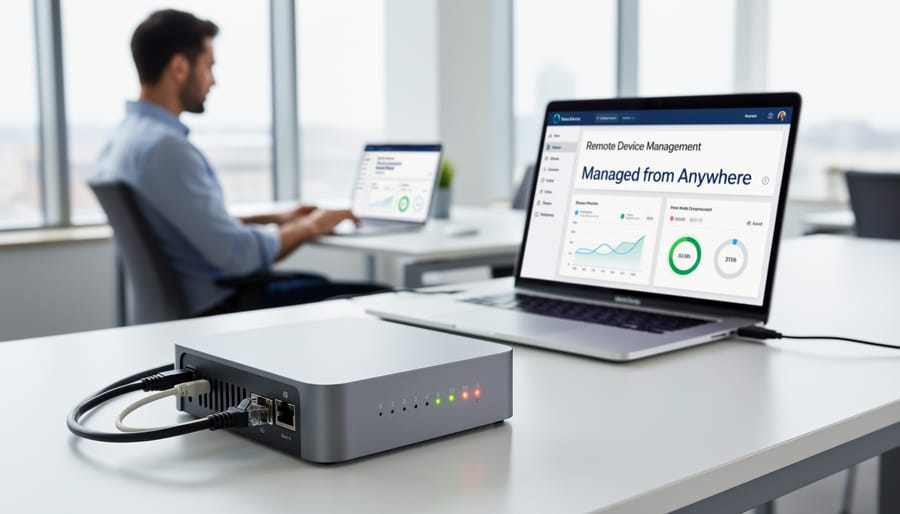
A remote device management application lets you update, monitor, and control computers, IoT sensors, smartphones, or industrial hardware from anywhere without needing physical access to each device. For beginners working with connected devices in 2026, these tools solve a practical problem: keeping dozens or even thousands of devices running the latest software, troubleshooting issues remotely, and pushing security patches before vulnerabilities become threats.
Think of it like this. You’ve deployed 50 temperature sensors across a warehouse, or you manage a fleet of digital signage screens in retail stores. When a bug surfaces or you need to roll out new features, visiting each device individually wastes hours or days. A remote management app handles the work centrally. You upload the new firmware once, select your target devices, and the system pushes updates automatically while logging each action.
This guide walks you through setting up and using UpdateHub, a straightforward remote device management platform that works well for newcomers. You’ll learn how to connect devices, configure update policies, and verify everything works correctly. We’ll also cover common safety precautions to avoid bricking devices or pushing faulty updates. By the end, you’ll have a working system that saves time and keeps your connected hardware secure and up to date.
What Is a Remote Device Management Application?
How UpdateHub Fits In
UpdateHub is a specialized remote device management platform designed specifically for embedded Linux devices and IoT products. While the broader category of remote management of IoT includes many different tools, UpdateHub focuses on one crucial task: delivering over-the-air (OTA) software updates to devices in the field.
Think of it as a delivery system for your device’s software. Instead of physically accessing each device to update it, UpdateHub lets you push updates from your computer to thousands of devices simultaneously, whether they’re smart thermostats in homes across the country or industrial sensors in remote locations.
What makes UpdateHub particularly useful for this guide is its straightforward approach. It handles the complex backend work, ensuring updates download correctly, verifying they’re authentic, and rolling back if something goes wrong, while giving you a simple dashboard to control everything. You don’t need to be a software engineer to use it effectively.
For manufacturers shipping connected products or developers managing fleets of Linux-based devices, UpdateHub represents a practical, real-world example of how remote device management actually works in practice.
What You’ll Need to Get Started

Before you can manage devices remotely, gather a few essentials. You don’t need an expensive lab setup, just the right components and a bit of planning. Here’s what to have ready:
- A device to manage: This could be an embedded Linux device, a Raspberry Pi, or another development board that supports remote management agents
- Stable internet connection: Both your computer and the target device need reliable network access during setup and updates
- UpdateHub account or similar platform: You’ll need to register with a remote device management service (we’re using UpdateHub as our example)
- Device access credentials: Login details and permissions to configure your target device, including SSH access if applicable
You’ll also benefit from some basic familiarity with device configuration, nothing advanced, but understanding how to access your device’s settings helps. If you’re new to tech fundamentals, brushing up on computer science fundamentals can build confidence. If you need hardware first, check out our guide to choose a laptop that fits your needs. Most importantly, set aside about 30 to 45 minutes for the initial setup, rushing through configuration creates headaches later.
Before You Begin: Important Safety Warnings
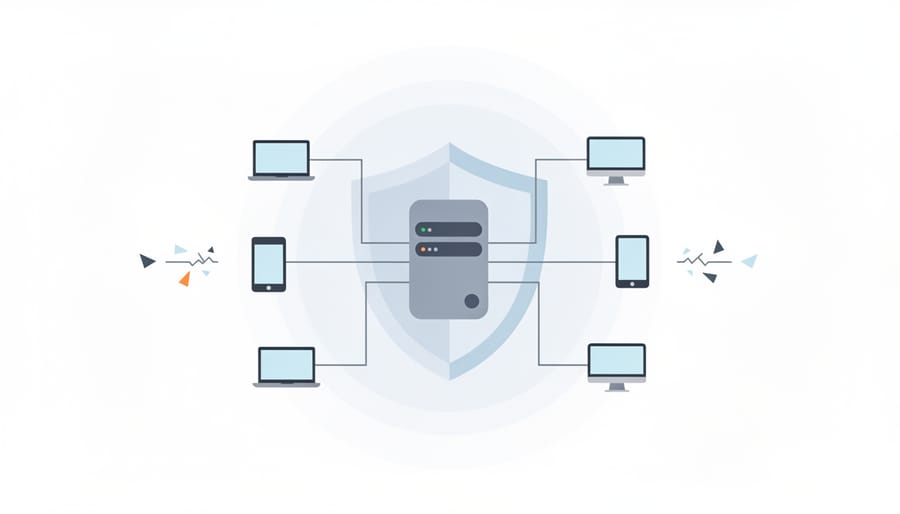
Before jumping into remote device management, you need to understand a few critical safety measures. Skipping these precautions could leave you with a bricked device or lost data.
Back up everything first. Before any remote update or configuration change, create a complete backup of your device’s current state. This includes system files, configurations, and any data stored locally. If something goes wrong during the update process, you’ll need this backup to restore functionality. Think of it like taking a snapshot before making major changes to your computer.
Timing matters enormously. Don’t push updates when your devices are performing critical tasks. If you’re managing industrial equipment or systems that monitor important processes, schedule updates during maintenance windows or low-activity periods. An unexpected reboot during a critical operation could have serious consequences.
Understand your rollback options before you need them. Most remote management platforms, including UpdateHub, offer ways to revert to a previous software version if an update fails. Know how to trigger a rollback and verify that your platform supports this feature. Some systems automatically roll back on failure; others require manual intervention.
Security cannot be an afterthought. Always use encrypted connections (HTTPS, TLS) when communicating with your management platform. Weak passwords or unsecured networks create entry points for attackers to take control of your devices. Enable two-factor authentication on your management account if available, and regularly rotate API credentials.
How to Set Up Remote Device Management
Step 1: Prepare Your Device
Before you can manage your device remotely, you need to make sure it’s actually ready for the job. Think of this like prepping your phone before installing a new app, you check if it meets the requirements first.
Start by confirming your device is compatible with your chosen management platform. For UpdateHub, this typically means running embedded Linux on something like a Raspberry Pi, BeagleBone, or custom IoT hardware. Check the platform’s documentation for supported operating systems and minimum hardware specs. Most remote management tools need at least 50MB of storage space and 128MB of RAM, though requirements vary.
Next, connect your device to the internet. This seems obvious, but stable network access is essential. A wired Ethernet connection is more reliable than Wi-Fi for the initial setup, especially if you’re working with industrial devices or development boards.
Finally, make sure you have administrative access to your device’s command line. You’ll need this to install the management agent software. On Linux devices, this means SSH access with root or sudo privileges. Test this by logging in remotely before proceeding, it saves headaches later when you’re trying to install software packages.
Step 2: Create Your Management Account
Head to the UpdateHub website and click the sign-up button. You’ll need a valid email address and a password that meets their security requirements (usually at least 8 characters with a mix of letters and numbers).
Once you verify your email, log in and create your first project. Think of a project as a container for all the devices you want to manage together, maybe “Home IoT Devices” or “Development Boards.” Give it a clear name you’ll recognize later.
After creating the project, navigate to the settings or API section. Here you’ll generate your API credentials: a product UID and potentially an access token. Copy these immediately and store them somewhere safe, like a password manager. You’ll need them in the next step to connect your device.
The free tier typically allows a handful of devices, perfect for getting started without any cost.
Step 3: Connect Your Device to the Platform
With your device prepared and your account ready, it’s time to bridge the gap between them. This step installs the software agent that lets your device talk to the management platform.
Start by downloading the UpdateHub agent appropriate for your device’s architecture. Most Linux devices use either ARM or x86 builds. You can grab the installer from UpdateHub’s website or use a package manager command like `apt-get install updatehub` on Debian-based systems.
Once installed, you need to tell the agent where to connect. Open the configuration file, typically located at `/etc/updatehub.conf`, using a text editor. You’ll see a simple structure that looks like this:
“`
server_address=
product_uid=your-project-id-here
polling_interval=3600
“`
Replace `your-project-id-here` with the actual project ID from your UpdateHub dashboard. The polling interval controls how often your device checks for updates (shown here as every hour, or 3600 seconds).
Save the file and restart the agent service with `systemctl restart updatehub`. Within a minute or two, your device should appear in your platform dashboard with a green “connected” status. If it doesn’t show up, double-check your product ID and verify the device has internet access.
Step 4: Configure Update Policies
Now that your device is connected, you need to decide how updates get delivered. Think of this as setting house rules for your device management system.
Start by choosing between automatic and manual updates. Automatic updates apply as soon as they’re available, perfect for security patches that need immediate deployment. Manual updates give you control, letting you review and approve each one before it goes out. For most users, a hybrid approach works best: automatic for minor fixes, manual for major changes.
Next, set up scheduling windows. Configure updates to happen during off-peak hours when devices aren’t actively in use. For example, schedule overnight deployments (like 2 AM to 5 AM) to avoid disrupting operations. In UpdateHub’s dashboard, you’ll find scheduling options under your project settings where you can specify exact time ranges.
Finally, choose your rollout strategy. Instead of pushing updates to all devices simultaneously, consider a gradual approach. Start with 10% of devices, monitor for issues, then expand to the rest. This “canary deployment” catches problems before they affect your entire fleet. UpdateHub lets you create device groups specifically for this staged rollout process.
Step 5: Deploy Your First Remote Update
Now comes the exciting part: actually pushing an update to your device. Log into your UpdateHub dashboard and navigate to the Packages or Updates section. Click “Upload Package” and select your update file, this might be a firmware image, software bundle, or configuration update depending on your device type. Most platforms accept common formats like .tar.zip, or device-specific images.
Once uploaded, you’ll see a list of connected devices. Check the box next to the device you set up earlier, or select multiple if you’re feeling confident. Before clicking deploy, double-check you’re targeting the right device, sending the wrong update can cause headaches.
Hit the “Deploy” or “Rollout” button and watch the magic happen. Your dashboard will show real-time progress: “downloading,” “installing,” “verifying,” and finally “complete.” This usually takes a few minutes depending on update size and your connection speed. The device might reboot automatically, that’s normal.
If something goes wrong, most platforms let you pause the rollout or trigger a rollback to the previous version. Keep the dashboard open until you see that green “Success” status. Your device just received its first remote update without you touching it physically.
Verifying Your Setup Works
After deploying your first remote update, you need to confirm everything worked as intended. Start by logging into your UpdateHub dashboard and navigating to the device list, your managed device should show a green status indicator or “Online” label if the connection is healthy. Click into the device details to see the currently installed software version, which should match the update you just pushed.
Here’s a quick verification checklist to work through:
- Check the dashboard status indicator shows green or “Connected”
- Confirm the version number matches your deployed update
- Review the update timestamp to ensure it completed recently
- Look for any error flags or warning messages in the device view
- Test the device’s actual functionality to confirm it operates correctly
Beyond the dashboard, physically interact with your device if possible. If you updated a smart thermostat, check that the new features appear in the interface. For an embedded system, verify the expected behavior changes took effect. This hands-on test catches issues that dashboard metrics might miss.
Dive into the logs section of your UpdateHub interface to see the complete update history. Successful updates typically show entries like “Package downloaded,” “Installation complete,” and “Device rebooted successfully.” If something went wrong, you’ll spot error codes or failure messages here, common issues include “Download timeout” (network problem), “Signature verification failed” (security mismatch), or “Insufficient storage” (device limitation). A clean log with completed status entries means your remote management setup is working properly and ready to scale.
What You Can Do Next
Now that you’ve successfully set up remote device management for one device, you’re ready to expand your capabilities. Start by adding more devices to your UpdateHub dashboard, the process is identical to your first setup, and managing ten devices takes barely more effort than managing one. Next, configure monitoring and alerts so you receive notifications when devices go offline, updates fail, or performance metrics fall outside normal ranges. This proactive approach prevents small issues from becoming major problems.
Create automated update workflows that deploy patches during off-peak hours or roll out changes gradually to test stability before reaching your entire fleet. Many platforms let you organize devices into groups (production, testing, development) with different update policies for each. Explore advanced features like remote diagnostics, which let you pull logs and run health checks without physical access, and remote configuration management to adjust device settings across your fleet instantly. If you’re managing educational technology, consider how remote management integrates with gamified learning platforms that need synchronized updates across student devices. The skills you’ve built form the foundation for sophisticated device operations at any scale.
Common Questions About Remote Device Management
Is remote device management secure?
Yes, when properly configured. Reputable platforms like UpdateHub use encrypted connections (HTTPS/TLS) and authentication tokens to protect data in transit. The key is choosing a platform with strong security practices and keeping your credentials private.
What happens if my internet connection drops during an update?
Most modern remote management systems include safety mechanisms. UpdateHub and similar platforms typically pause the update and resume when connectivity returns, or roll back to the previous working version if the update can’t complete successfully.
How much does remote device management cost?
Costs vary widely. Many platforms offer free tiers for small deployments (1-10 devices), with paid plans starting around $20-50 monthly for larger fleets. UpdateHub, for example, provides free options for developers and small projects.
Will this work with my specific device?
It depends on your device’s operating system and capabilities. UpdateHub focuses on embedded Linux devices, while other platforms support Windows, macOS, Android, or iOS. Check the platform’s compatibility list before committing.
What’s the difference between management platforms?
Platforms vary in supported devices, features, and complexity. Some specialize in consumer devices, others in industrial IoT. UpdateHub excels at OTA updates for Linux-based products, while competitors might offer broader device support but less specialized update control.
Beyond these basics, you might wonder about customization options. If you’re comfortable with scripting and want to build custom automation around your device management, you could learn Python to write scripts that integrate with platform APIs. This opens up possibilities like automated reporting, custom update triggers, or integration with other business systems. However, it’s entirely optional for getting started.
Remote device management applications put powerful control at your fingertips, letting you update, monitor, and maintain devices from anywhere in the world. What once seemed like enterprise-level technology is now surprisingly accessible for anyone willing to spend an afternoon learning the basics.
You’ve seen the core process: prepare your device, connect it to a management platform like UpdateHub, configure your update policies, and deploy changes remotely. Start with just one device to build your confidence. The setup takes a few hours initially, but the time you’ll save on future updates and troubleshooting makes it worthwhile.
Don’t let the technical terminology intimidate you. These tools were designed to simplify device management, not complicate it. Pick one device, follow the steps carefully, and you’ll be managing remote updates like a pro before you know it.