
A Kubernetes Raspberry Pi cluster is a collection of low-cost single-board computers networked together to run Kubernetes, giving you a hands-on platform to learn container orchestration without cloud costs. You’ll connect three to five Raspberry Pi boards, install a lightweight operating system on each, and configure them to work as one coordinated system where Kubernetes manages your applications. The whole project takes about four to six hours from unboxing to running your first containerized application, and it costs roughly $200 to $400 depending on how many nodes you build.
Building this cluster teaches you the same concepts used in production environments at major companies, but on hardware you can physically touch and rewire. When you deploy an application, you’ll see exactly which Pi is running it. When a node fails, you can literally unplug it and watch Kubernetes automatically restart your app on another board. This tangible feedback loop makes abstract ideas like pod scheduling, service discovery, and high availability suddenly click.
The project also solves a common learning problem. Cloud platforms charge you by the hour, which makes experimentation expensive and stressful. A Raspberry Pi cluster runs in your home, costs nothing after the initial purchase, and you can break it and rebuild it as many times as you need. You’ll gain confidence troubleshooting real networking issues, storage challenges, and configuration problems without worrying about surprise bills or accidentally exposing services to the internet.
This guide walks you through every component you’ll need, how to assemble and configure each piece, and what commands to run to verify everything works correctly.
What You’ll Need for Your Raspberry Pi Cluster
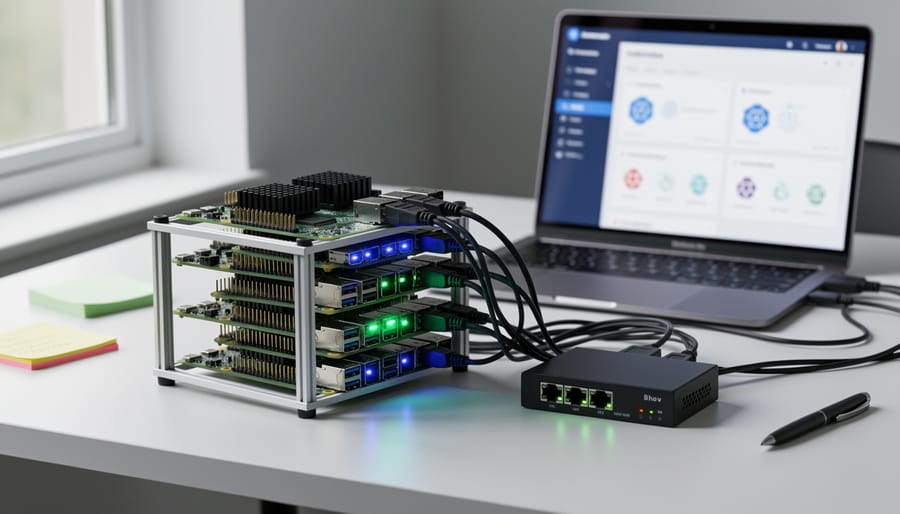
Before you start assembling your cluster, gather everything you need. Building a Kubernetes cluster on Raspberry Pi is simpler than learning to build computers from scratch but you still need the right components upfront to avoid frustrating delays mid-project.
Hardware Requirements
Here’s your complete shopping list:
- Three Raspberry Pi 4 boards with 4GB RAM minimum (8GB is better for testing resource-heavy applications)
- Three microSD cards, 32GB or larger, Class 10 speed rating
- Three USB-C power supplies, official Raspberry Pi 15W adapters recommended
- One 5-port Gigabit network switch
- Four short Ethernet cables (three for the Pis, one to connect the switch to your router)
- Optional: cluster case or stackable case to keep everything organized
- Optional: heatsinks or small cooling fans if you plan to run demanding workloads
Why three devices? Kubernetes needs at least one master node (the control plane that manages everything) and one worker node (where your applications actually run). A three-node setup with one master and two workers gives you a realistic cluster that demonstrates how Kubernetes distributes workloads. You can start with two nodes total, but three better mimics production environments.
The Raspberry Pi 4 with 4GB RAM hits the sweet spot for learning. Earlier models like the Pi 3 will work but run noticeably slower, especially during initial setup. Less than 4GB of RAM severely limits what you can deploy.
Software Requirements
You won’t install these until later steps, but here’s what you’ll need:
Raspberry Pi OS Lite is your operating system. The Lite version skips the desktop interface, saving precious resources for Kubernetes itself. You’ll also install containerd as your container runtime, plus the three core Kubernetes tools: kubeadm sets up your cluster, kubelet runs on each node to manage containers, and kubectl lets you control everything from the command line.
Budget around $200-300 for a complete three-node cluster, depending on whether you already own a network switch and power supplies.
Important Things to Know Before You Start
Before you power up your first Raspberry Pi, there are some practical and technical considerations that will save you time and protect your hardware.
Power Supply Safety
Each Raspberry Pi needs its own dedicated power supply. Don’t connect multiple Pis to a single power adapter using splitters or USB hubs unless the hub is specifically rated to deliver 3A per port. Underpowered Pis will randomly reboot, causing your cluster nodes to drop offline unpredictably. When handling the boards themselves, work on a non-static surface and touch a grounded metal object before picking them up. Static electricity can damage the exposed circuitry.
Technical Prerequisites
You’ll need basic comfort with the command line. This means typing commands into a terminal, navigating directories, and editing text files. If you’ve never used SSH before, spend 20 minutes watching a quick tutorial first. Set aside a solid afternoon for the initial setup. Most people complete the build in 2-3 hours, though troubleshooting network issues can add time.
Network Requirements
Your router must allow you to assign static IP addresses to devices. Some ISP-provided routers lock this feature down. You’ll also need physical access to your router to connect the network switch. If you plan to manage devices remotely after setup, configure port forwarding during the initial network configuration rather than trying to add it later.
Gather all your hardware in one place before starting. Having to pause mid-setup to find an Ethernet cable breaks your momentum and increases the chance of configuration mistakes.
Step-by-Step: Building Your Kubernetes Cluster
Step 1: Prepare Your Raspberry Pi Devices
Start by downloading Raspberry Pi Imager from the official Raspberry Pi website and installing it on your computer. This free tool makes flashing OS images foolproof.
Insert your first microSD card into your computer’s card reader, then open Raspberry Pi Imager. Click “Choose OS” and select “Raspberry Pi OS (other)” followed by “Raspberry Pi OS Lite (64-bit)”, the lighter version without a desktop interface, which saves resources for Kubernetes. Click “Choose Storage” and select your SD card.
Before clicking “Write,” hit the gear icon for advanced options. This is crucial. Enable SSH by checking “Enable SSH” and choose “Use password authentication.” Set a hostname for this card, use “k8s-master” for your first Pi. Create a username and strong password you’ll remember. Under “Configure wireless LAN,” you can skip this since we’re using Ethernet. Scroll down and check “Set locale settings” to match your timezone.
Now click “Save” and then “Write.” The process takes 5-10 minutes per card. Repeat this entire process for your other SD cards, changing only the hostname to “k8s-worker-1” and “k8s-worker-2.”
Once all cards are flashed, there’s one more critical step. Insert each card back into your computer, open the boot partition, and edit the file called “cmdline.txt.” At the end of the existing single line (don’t create a new line), add a space followed by: cgroup_enable=cpuset cgroup_memory=1 cgroup_enable=memory
This enables cgroup memory limits, which Kubernetes requires to manage container resources properly. Save the file, safely eject the card, and repeat for all three cards.
Step 2: Set Up Networking

Connect each Raspberry Pi to your network switch using Ethernet cables. Before booting them up, you need to assign static IP addresses so each device always has the same location on your network.
Static IPs are critical because Kubernetes nodes need to reliably find each other. If your router assigns different IPs each time a Pi restarts, your cluster will break. Think of static IPs as permanent home addresses rather than temporary hotel rooms.
Log into your router’s admin panel and reserve IP addresses for each Pi based on their MAC addresses. Most routers call this “DHCP reservation” or “static lease.” Assign something like for k8s-master, for k8s-worker-1, and for k8s-worker-2.
After setting these reservations, reboot each Pi and verify they received the correct IPs by running `hostname -I` on each device.
Test connectivity by pinging from the master to each worker: `ping `. You should see replies without packet loss. If pinging fails, check your cable connections and router settings before proceeding.
Step 3: Install Container Runtime on All Nodes
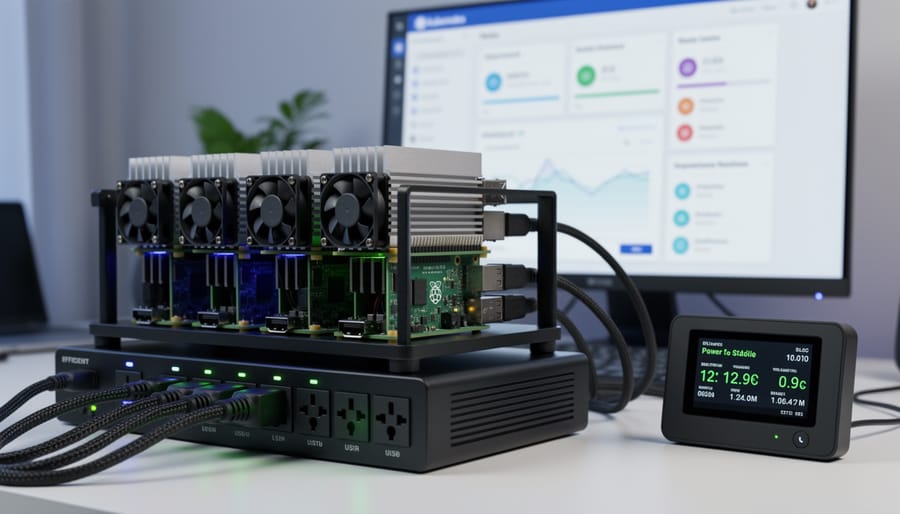
Before Kubernetes can run any containers, each Raspberry Pi needs a container runtime, the software that actually creates and manages containers. Think of it as the engine that turns container images into running applications. We’ll use containerd because it’s lightweight, officially supported by Kubernetes, and works well on ARM processors.
Start by updating the package lists on all three Raspberry Pis. SSH into each device and run:
“`
sudo apt-get update
sudo apt-get upgrade -y
“`
This ensures you’re working with the latest software versions. Next, install containerd on each Pi:
“`
sudo apt-get install -y containerd
“`
Now comes an important configuration step for ARM architecture. Create a default configuration file:
“`
sudo mkdir -p /etc/containerd
sudo containerd config default | sudo tee /etc/containerd/config.toml
“`
Open that configuration file with `sudo nano /etc/containerd/config.toml` and find the line that says `SystemdCgroup = false`. Change it to `SystemdCgroup = true`. This tells containerd to use systemd for managing container resources, which Kubernetes expects.
Save the file and restart containerd to apply the changes:
“`
sudo systemctl restart containerd
sudo systemctl enable containerd
“`
Verify it’s running with `sudo systemctl status containerd`. You should see “active (running)” in green text.
Repeat this entire process on your master node and both worker nodes. Once containerd is running on all three devices, you’re ready to install the Kubernetes components themselves.
Step 4: Install Kubernetes Components
Now you’ll install the three core Kubernetes components that turn your Raspberry Pis into cluster-ready machines. Think of these as the essential tools in your Kubernetes toolkit: kubeadm builds the cluster structure, kubelet keeps containers running on each device, and kubectl lets you control everything from the command line.
Run these commands on every Raspberry Pi in your setup, both master and worker nodes need all three components.
First, add the Kubernetes package repository. This ensures you get official, compatible versions:
“`
sudo apt-get update
sudo apt-get install -y apt-transport-https ca-certificates curl
curl -fsSL | sudo gpg –dearmor -o /etc/apt/keyrings/kubernetes-apt-keyring.gpg
echo ‘deb [signed-by=/etc/apt/keyrings/kubernetes-apt-keyring.gpg] /’ | sudo tee /etc/apt/sources.list.d/kubernetes.list
“`
Next, install the three components:
“`
sudo apt-get update
sudo apt-get install -y kubelet kubeadm kubectl
sudo apt-mark hold kubelet kubeadm kubectl
“`
The `apt-mark hold` command prevents accidental updates, which is important because Kubernetes components need to match versions across your cluster.
For 2026, Kubernetes 1.28 remains a solid choice for Raspberry Pi clusters, it balances new features with stability on ARM architecture. Version 1.29 and 1.30 also work, but stick with one version across all your nodes.
Verify the installation worked:
“`
kubeadm version
“`
You should see version information printed to the terminal. If you get a “command not found” error, go back and check each installation step.
Step 5: Initialize the Master Node
Now you’re ready to turn your master Pi into the brain of your cluster. This is the moment where everything comes together, kubeadm will set up all the components that make Kubernetes work, from the API server to the scheduler.
Log into your master node (k8s-master) and run the initialization command:
“`
sudo kubeadm init –pod-network-cidr=
“`
This command does several things behind the scenes. It starts the Kubernetes control plane components (the API server that handles all cluster requests, the scheduler that decides where to run containers, and etcd which stores cluster state). The `–pod-network-cidr` flag reserves IP addresses for your pods to use, we’re using because it’s the default for Flannel, the networking plugin we’ll install in Step 7.
The initialization takes about five minutes. You’ll see kubeadm downloading container images and starting various services. When it finishes, you’ll get important output including a `kubeadm join` command with a token and certificate hash.
Before you can control your cluster, you need to set up the kubeconfig file. This file tells kubectl how to connect to your cluster. Run these three commands exactly as shown in the kubeadm output:
“`
mkdir -p $HOME/.kube
sudo cp -i /etc/kubernetes/admin.conf $HOME/.kube/config
sudo chown $(id -u):$(id -g) $HOME/.kube/config
“`
These commands create a directory for Kubernetes configuration, copy the admin credentials there, and set the right permissions. Now kubectl knows you’re authorized to manage the cluster. Test it by running `kubectl get nodes`, you should see your master node listed, though it will show “NotReady” until we install networking in Step 7.
Step 6: Join Worker Nodes to the Cluster
Now it’s time to connect your worker nodes to the master you just set up. This is surprisingly straightforward, you’ll use that join command that appeared when you initialized the master node in Step 5.
On each worker Pi (k8s-worker-1 and k8s-worker-2), run the kubeadm join command. It looks something like this:
“`
sudo kubeadm join –token 789 –discovery-token-ca-cert-hash sha256:long-hash-here
“`
The command includes your master node’s IP address, a temporary token for authentication, and a certificate hash for security. Run this exact command on each worker node.
You’ll see output showing the node going through preflight checks, then pulling container images, and finally joining the cluster. This takes about two minutes per node.
Back on your master node, verify the workers joined successfully:
“`
kubectl get nodes
“`
You should see all three nodes listed with “Ready” status. If a node shows “NotReady”, wait a minute, it can take up to two minutes for the node network to initialize.
If a node stays “NotReady” for more than five minutes, check that containerd is running with `sudo systemctl status containerd` on that worker node.
Step 7: Install a Pod Network Add-on
Without a pod network, your Kubernetes cluster can’t actually run workloads. The pods on different nodes won’t be able to talk to each other, leaving your cluster unable to do its job. This network layer creates virtual connections between all your Raspberry Pi devices.
Flannel is the easiest choice for beginners. On your master node, run:
“`
kubectl apply -f
“`
Wait about 30 seconds, then check your nodes with `kubectl get nodes`. When everything works correctly, all nodes will show ‘Ready’ instead of ‘NotReady’. You can also run `kubectl get pods -n kube-flannel` to see the Flannel pods running on each device.
If you prefer Weave Net instead, use this command:
“`
kubectl apply -f
“`
Both networks do the same thing, they just use slightly different methods. Stick with one; don’t install both.
How to Verify Your Cluster Is Working
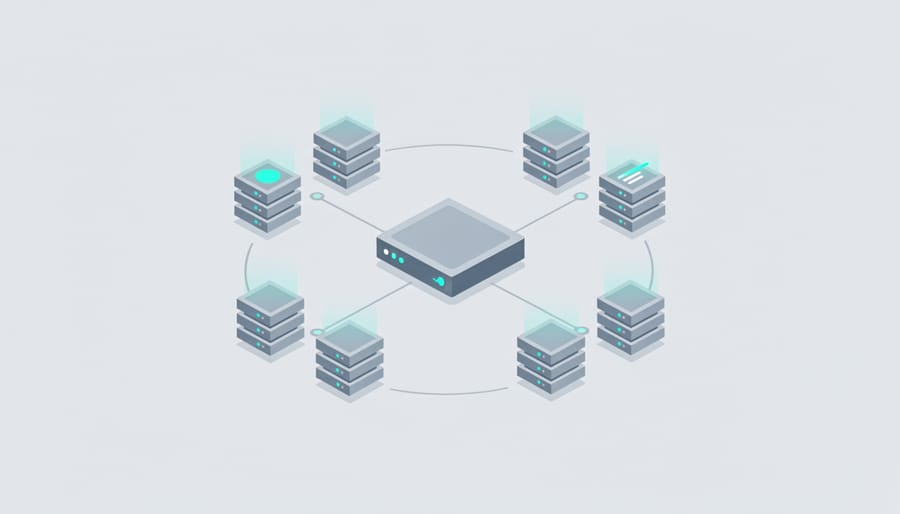
Now that you’ve joined all your nodes, you need to confirm everything’s working properly. Think of this as your cluster’s health check, a few simple commands that show whether your Raspberry Pis are talking to each other correctly.
Start by checking node status. Run `kubectl get nodes` from your master node. You should see all three nodes listed with a STATUS of “Ready”. This means Kubernetes recognizes each device and can schedule work on it. If any node shows “NotReady”, wait a minute and check again, sometimes it takes 30-60 seconds after joining for everything to initialize. If it stays NotReady beyond that, run `kubectl describe node [node-name]` to see what’s wrong. Usually it’s the pod network add-on still initializing.
Once all nodes show Ready, deploy a test application to verify the cluster can actually run workloads:
- Deploy nginx: `kubectl create deployment nginx-test –image=nginx`
- Check pod status: `kubectl get pods -o wide` (the -o wide flag shows which node each pod runs on)
- Wait for STATUS to show “Running” (this might take a minute while the image downloads)
- Expose the deployment: `kubectl expose deployment nginx-test –port=80 –type=NodePort`
- Get the assigned port: `kubectl get service nginx-test` (look for the port number after 80:, like 80:30123/TCP)
- Access nginx in your browser using any node’s IP address and that port: “
If you see the nginx welcome page, congratulations, your cluster is fully operational. To dig deeper, check pod logs with `kubectl logs [pod-name]` or get detailed pod information using `kubectl describe pod [pod-name]`. These commands help troubleshoot if something goes wrong.
This hands-on verification process builds the same troubleshooting skills you’d use managing production Kubernetes, whether you later choose a learning laptop for more complex projects or move to cloud platforms.
What You Can Do Next with Your Cluster
Now that your cluster is running, it’s time to put it to work. Start by deploying real applications, try hosting a simple web server, a personal blog, or a home automation dashboard. These practical projects help you understand how Kubernetes manages workloads in ways that reading alone never will.
Install the Kubernetes Dashboard for a visual interface to monitor your cluster. It shows pod health, resource usage, and node status at a glance, making troubleshooting much friendlier than command-line only.
Experiment with scaling to see Kubernetes’ real power. Deploy an application, then scale it from one pod to five with a single command. Watch how Kubernetes distributes the workload across your worker nodes automatically.
Try swapping Flannel for a different network plugin like Calico or Cilium. Each handles pod networking differently, and comparing them teaches you what’s happening under the hood.
Add another worker node to expand your cluster. The process mirrors what you’ve already done, and you’ll see how Kubernetes immediately starts using the new capacity.
Explore deployments, services, and ingress controllers through official Kubernetes tutorials. These concepts form the foundation of running production workloads, and your cluster is the perfect sandbox for hands-on learning without any cloud costs.
Common Questions About Raspberry Pi Kubernetes Clusters
Building a Kubernetes cluster on Raspberry Pi raises plenty of questions, especially if you’re new to both technologies. Here are answers to the most common concerns that come up when people start this project.
Can I use Raspberry Pi 3 instead of Pi 4?
Yes, Raspberry Pi 3 works but runs significantly slower due to less RAM (1GB max) and a weaker processor. Your cluster will function, but expect longer startup times and reduced capacity for running multiple pods simultaneously.
How much does it cost to build this cluster?
A basic three-node cluster costs roughly $200-250: three Raspberry Pi 4 boards (4GB) at $55 each, three 32GB microSD cards at $10 each, three power supplies at $8 each, a five-port network switch at $20, and Ethernet cables at $10 for a pack. You can reduce costs with smaller microSD cards or by reusing power supplies and network equipment you already own.
How much power does a Raspberry Pi cluster use?
A three-node Pi 4 cluster draws about 15-20 watts total under typical load, which translates to roughly $2-3 per month in electricity costs. This makes it far cheaper to run continuously than leaving a full PC on for learning.
Can I use Wi-Fi instead of Ethernet cables?
While technically possible, Wi-Fi introduces latency and reliability issues that cause cluster communication problems. Ethernet provides the stable, low-latency connections Kubernetes expects between nodes, making wired networking strongly recommended for any multi-node setup.
Another question that surfaces frequently: what separates this learning cluster from production Kubernetes environments? Production clusters run on more powerful hardware with redundancy, load balancers, persistent storage systems, and security hardening. Your Raspberry Pi cluster teaches the same core concepts, pods, deployments, services, networking, but without the enterprise-grade infrastructure surrounding them. Think of it as gamified learning for container orchestration: you’re working with real Kubernetes, just at a scale that fits on your desk.
Do you need cooling fans? For most learning workloads, passive cooling with a simple heatsink case suffices. If you plan heavy, sustained workloads or live in a hot climate, small fans prevent thermal throttling and keep your Pis running at full speed. Monitor temperatures with `vcgencmd measure_temp`, if you consistently see readings above 70°C under load, add active cooling.
You’ve built something impressive: a working Kubernetes cluster that operates on the same principles as systems managing millions of containers in production data centers. The skills you’ve developed, installing container runtimes, initializing control planes, managing worker nodes, and deploying applications, translate directly to cloud platforms like AWS, Google Cloud, and Azure. Your Raspberry Pi setup isn’t a toy; it’s a legitimate learning environment that mirrors enterprise architecture at a fraction of the cost.
What makes this project valuable isn’t just the finished cluster, it’s what you learned by building it. You configured networking, debugged node connectivity, managed distributed systems, and gained intuition about how containerized applications actually work. This practical knowledge beats passive learning every time, similar to how e-learning gamification makes abstract concepts concrete through active engagement.
Keep experimenting. Try breaking things and fixing them. Deploy different applications. Test how the cluster handles node failures. Each experiment deepens your understanding of container orchestration, turning enterprise technology from mysterious to manageable. You’ve demystified Kubernetes, now run with it.